What is the step-by-step process to do Automatic Bank Reconciliation ?
Automatic Bank Reconciliation typically works by following these steps:
- The admin uploads their bank statement to the software.
- The software matches the transactions in the bank statement to the transactions in the user's accounting software.
- The software identifies any discrepancies between the two sets of transactions.
- The admin reviews the discrepancies and makes any necessary adjustments.
- The software reconciles the bank statement.
Below are the steps to follow:
Keep the actual bank account statement ready in Excel format (.csv or .xlsx)
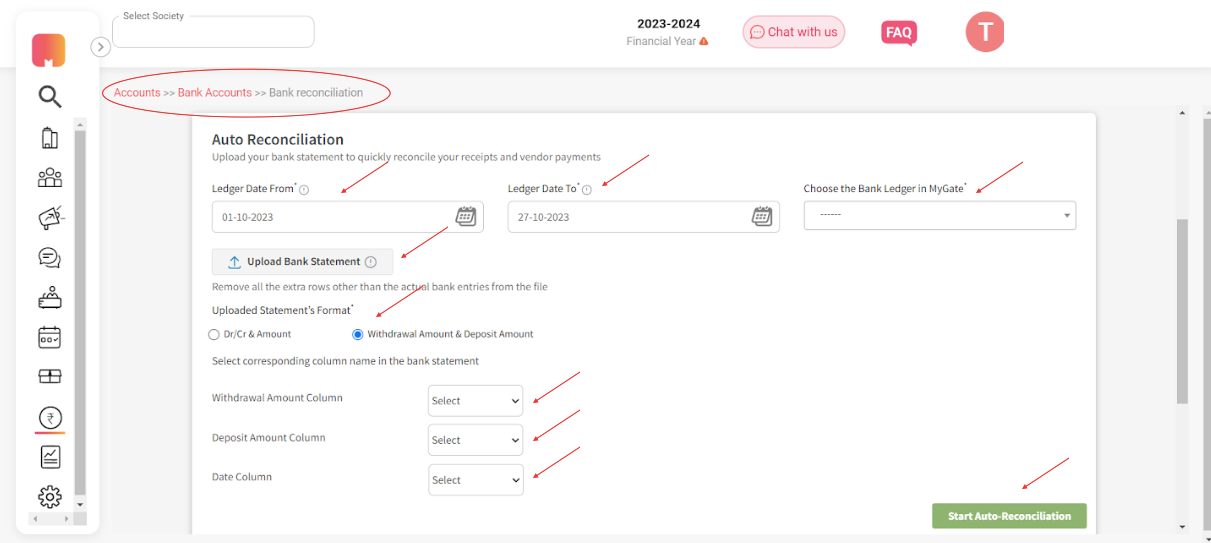
1. Select the ledger from and to date
2. Select the bank ledger name
3. Upload the bank statement (Remove headers from the file and keep only transactions before upload)
4. Select whether the statement is in Dr/Cr or Withdrawal/deposit format
a. Select which column in the file has Dr/Cr (If Dr/Cr is selected in step 4)
b. Select which column in the file has the amount (If Dr/Cr is selected in step 4)
c. Select which column in the file has withdrawal amount details (If withdrawal/deposit is selected in step 4)
d. Select which column in the file has deposit amount details (If withdrawal/deposit is selected in step 4)
5. Select which column in the file has the date
6. Select “Start Auto-Reconciliation.”
Notes: The system will skip reconciliation if no match is detected or already been reconciled.
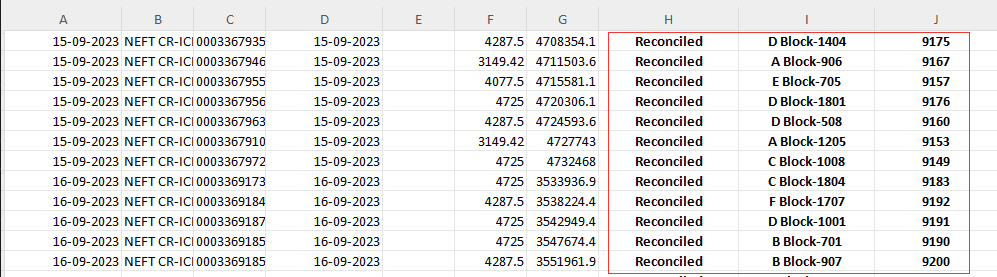
Once you click on the submit button, the system will do the reconciliation part and return a copy of the bank statement along with additional information such as action performed (Reconciled), party (Flat/Vendor), and entry details (Receipt number/Voucher No) against the line items matched.