
How to upload documents through the admin dashboard?
Steps to upload files/documents:
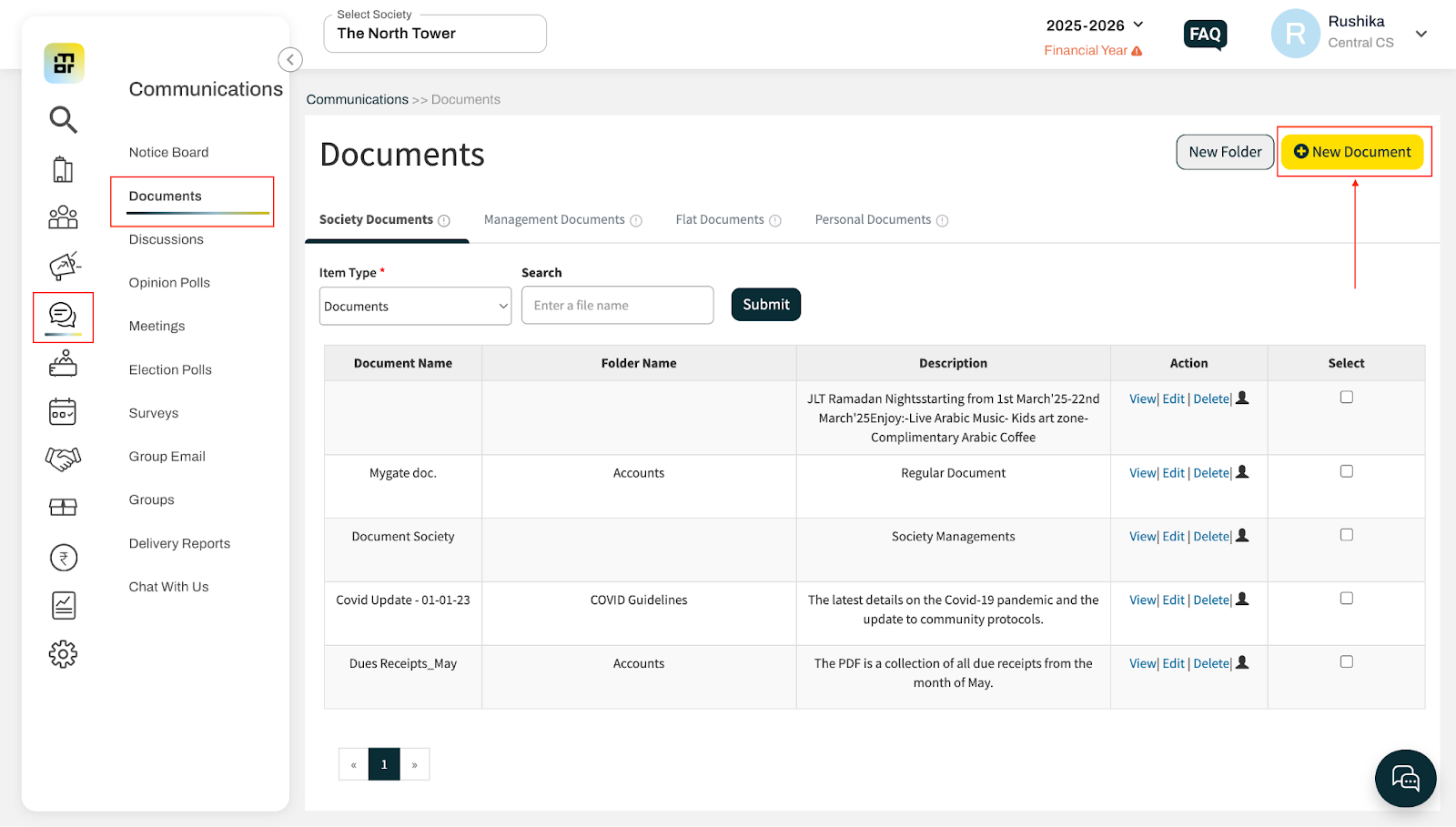
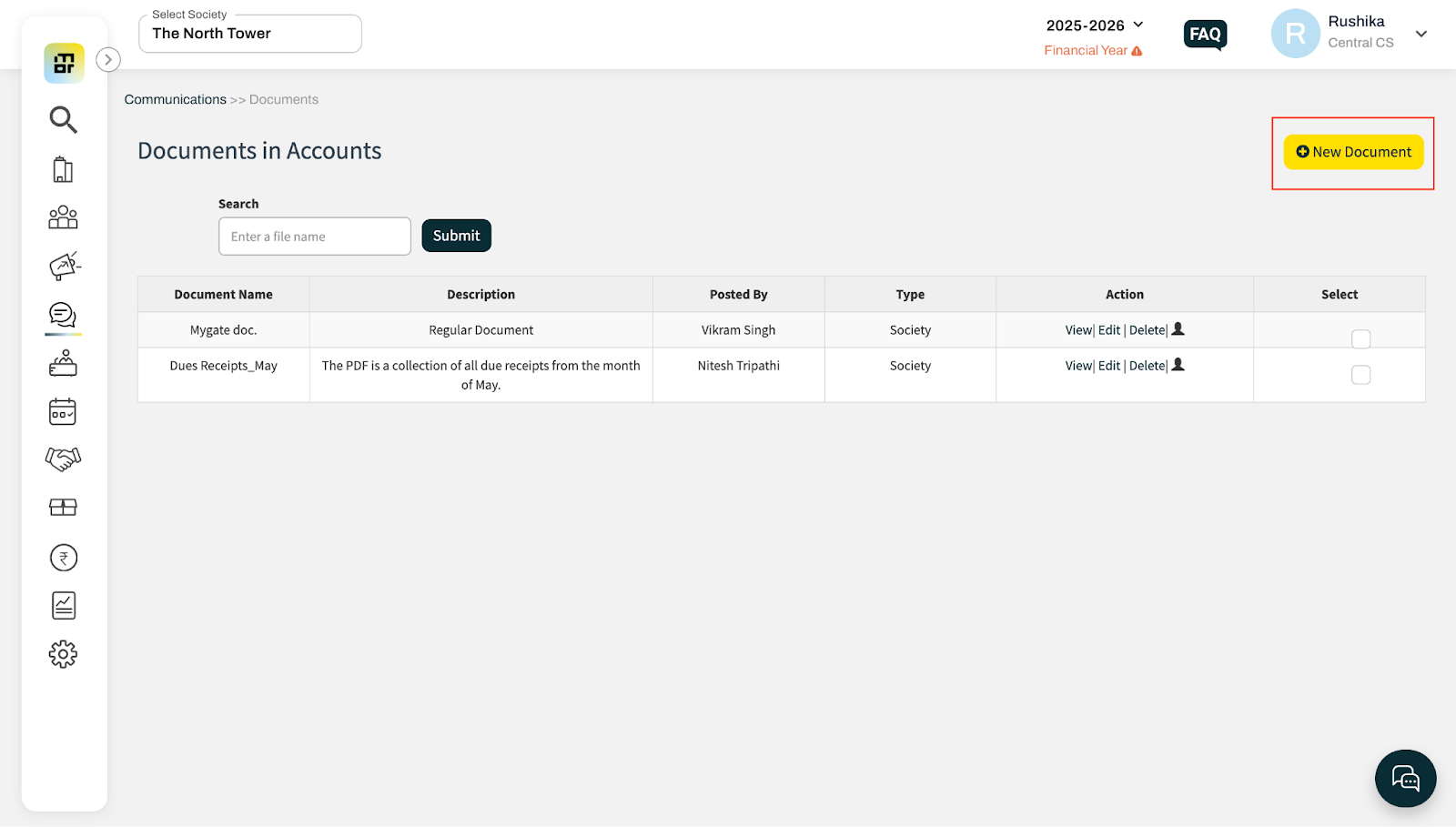
Go to the Documents section under the Communications tab and click “New Document” at the top-right corner.
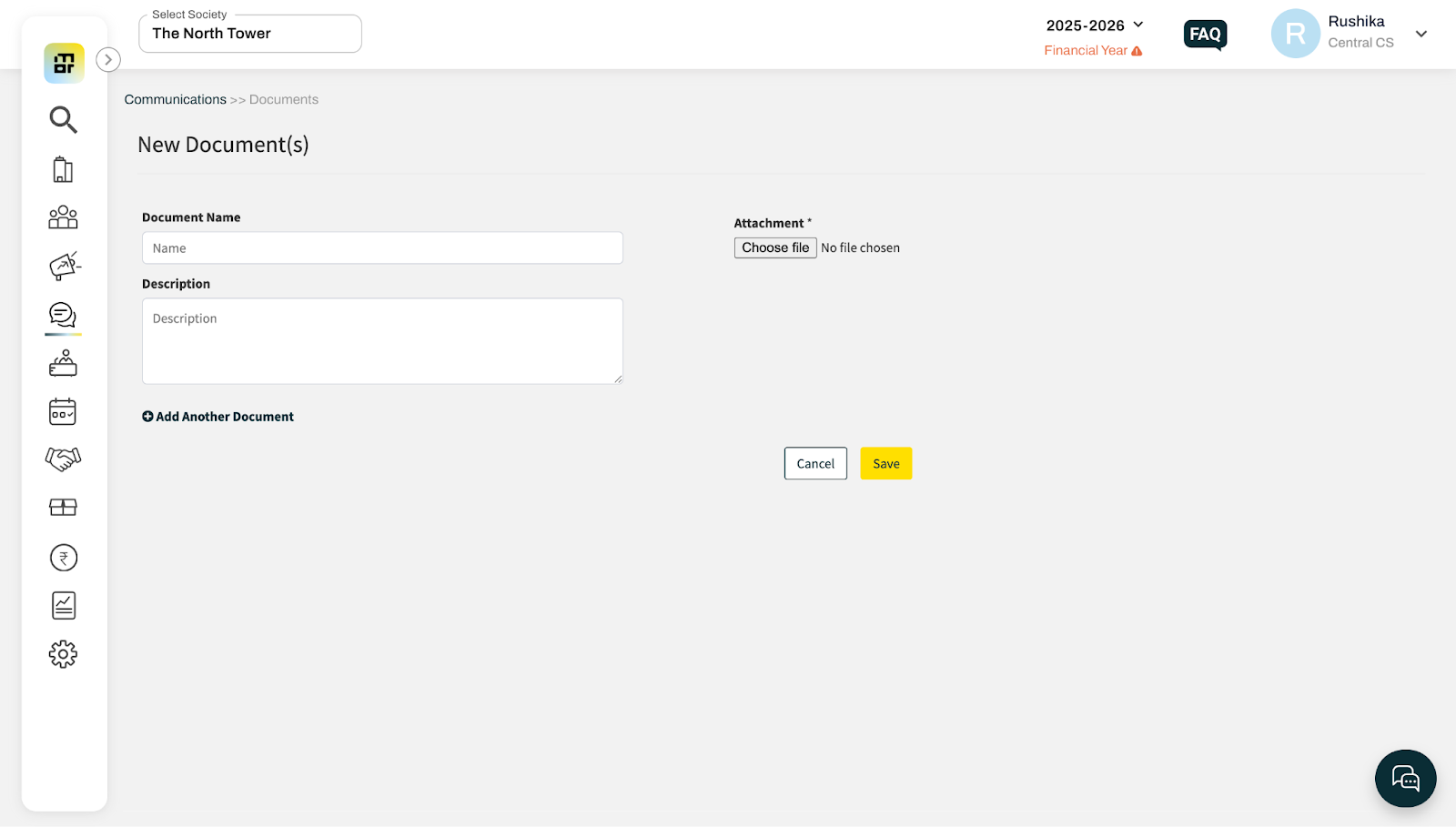
Enter the document name, add a description, and upload the file. You can upload multiple documents at the same time.
Select the document type. For Society documents, you can also choose the user groups who should have access to the document.
If required, select an existing folder to add the document to.
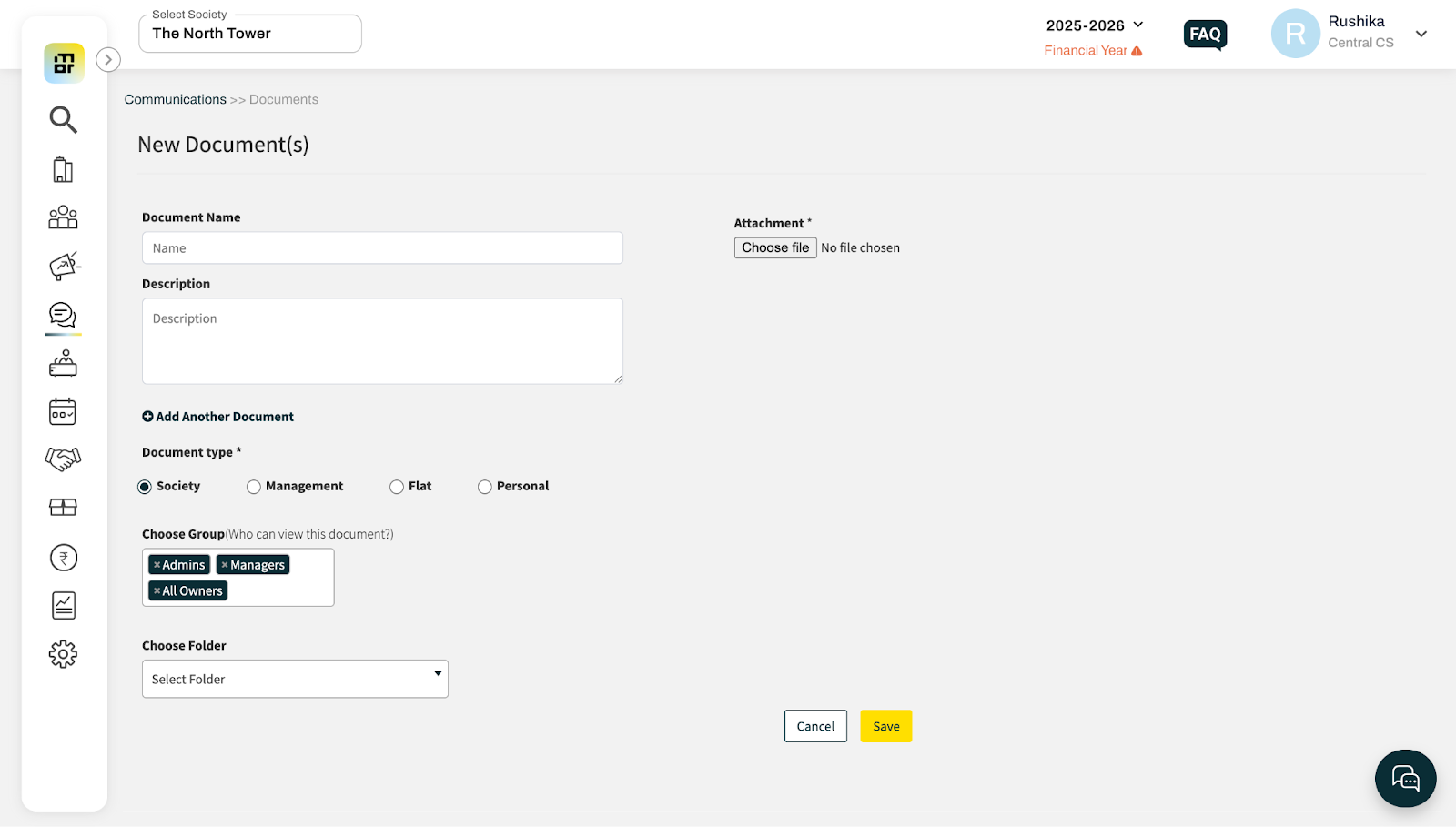
Click Save to upload the document.
Additional Note: You can also add a new document directly from within a folder.
Steps to upload a document within a folder:
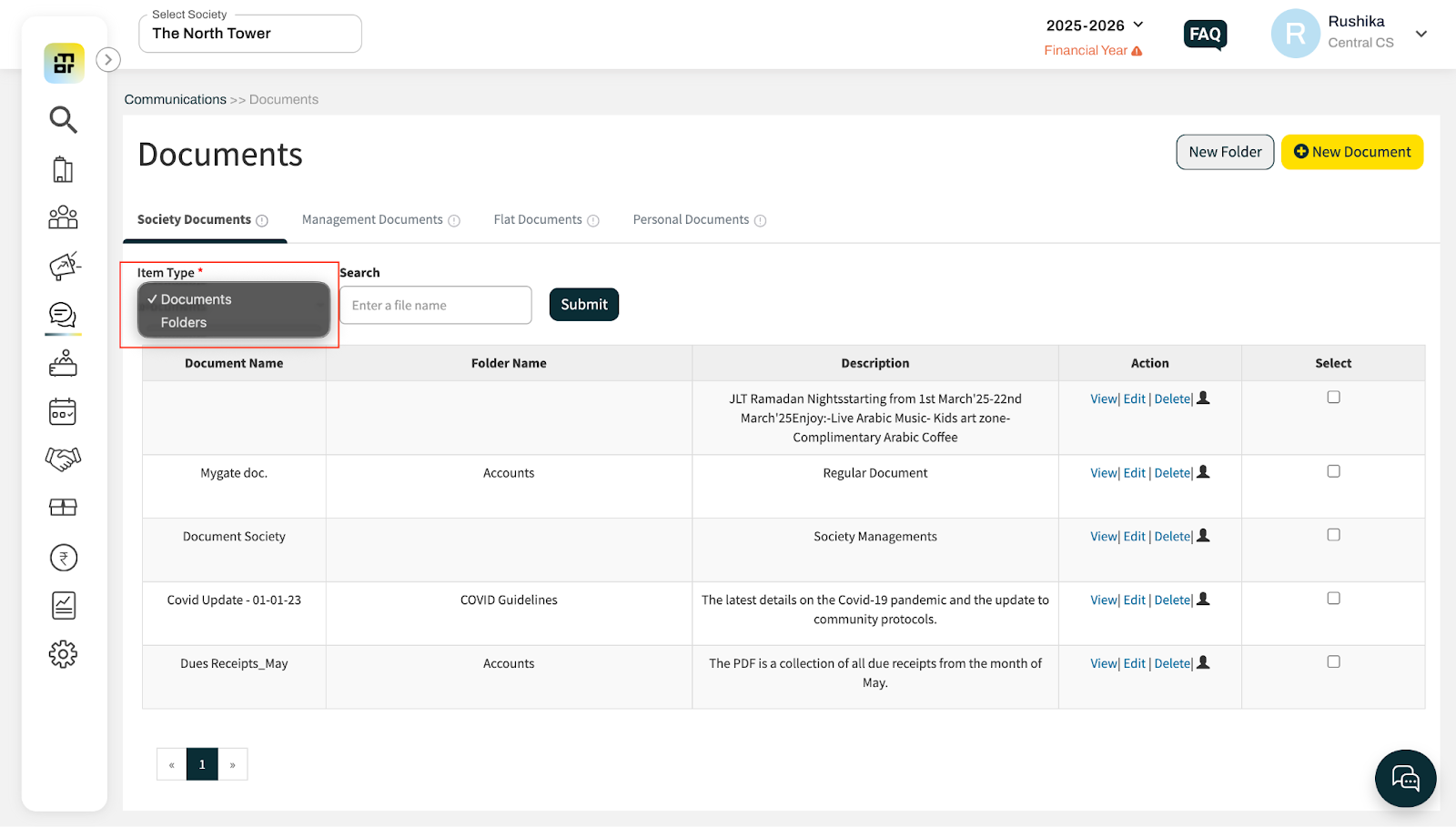
Go to the Documents section under the Communications tab and select Folders under Item Type.
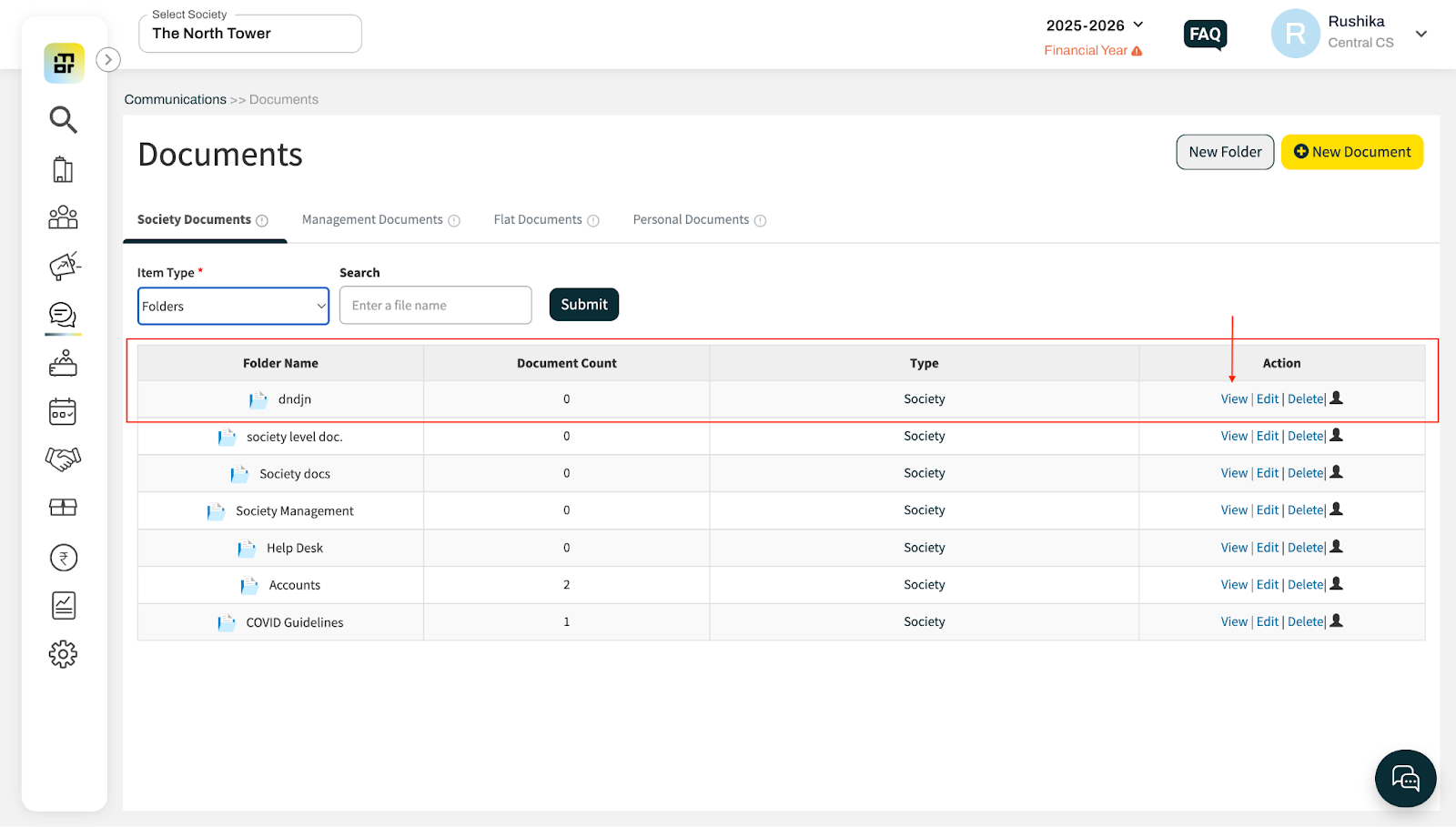
Click “View” in the Action column for the folder where you want to upload the file.
Click “New Document” at the top-right corner.
Enter the required details and click Save.
The document will be saved directly within the selected folder.