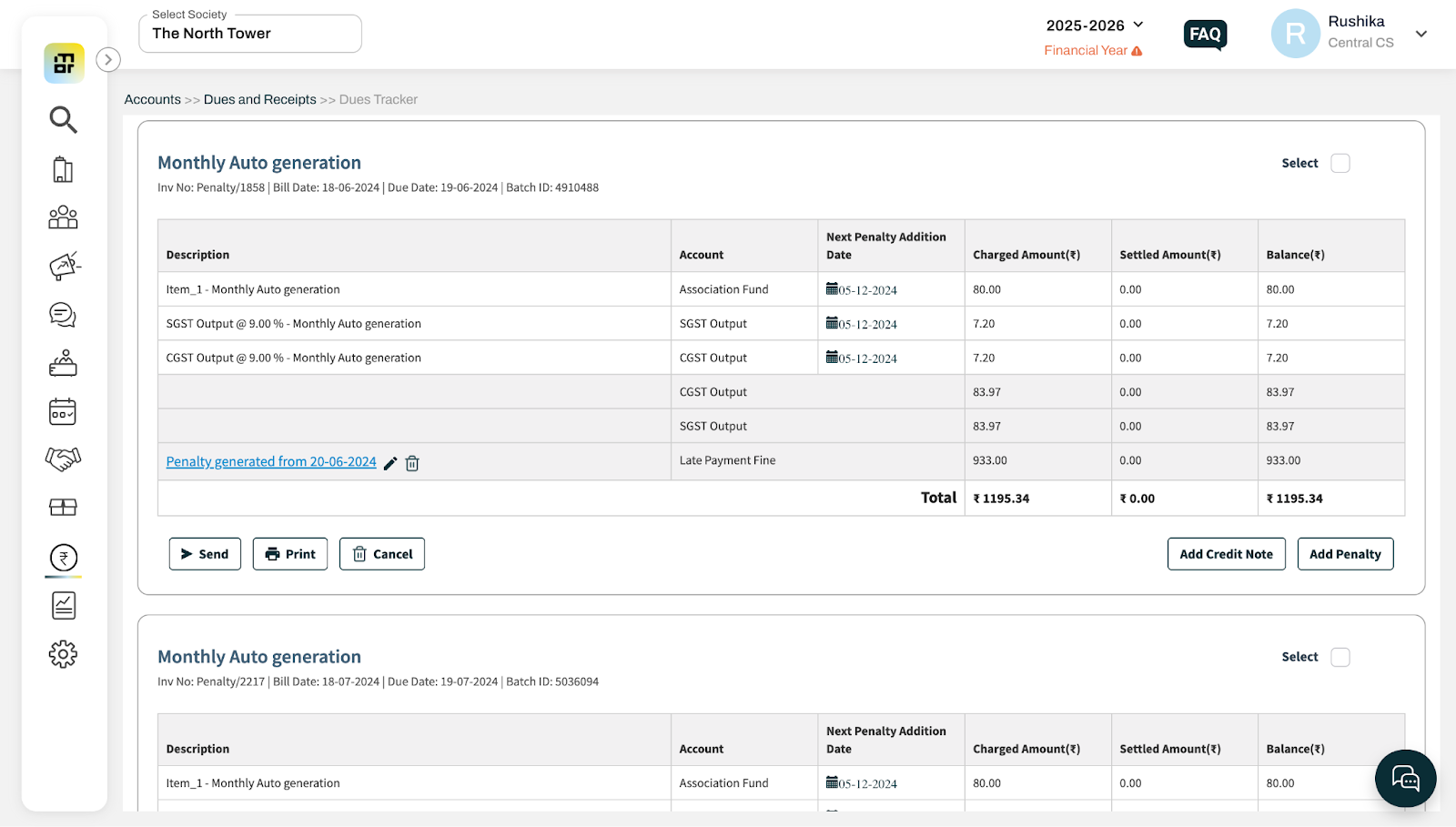
How can I view different charge items in an invoice?
You can view the detailed breakup of charge items included in an invoice through two different sections of the dashboard, depending on whether you want to check invoices in bulk or for a specific flat.
Method 1: View charge items from Invoice History
This method is useful when you want to review invoices generated as part of a specific billing cycle or batch.
Go to Accounts and select Invoice History under the Invoicing section.
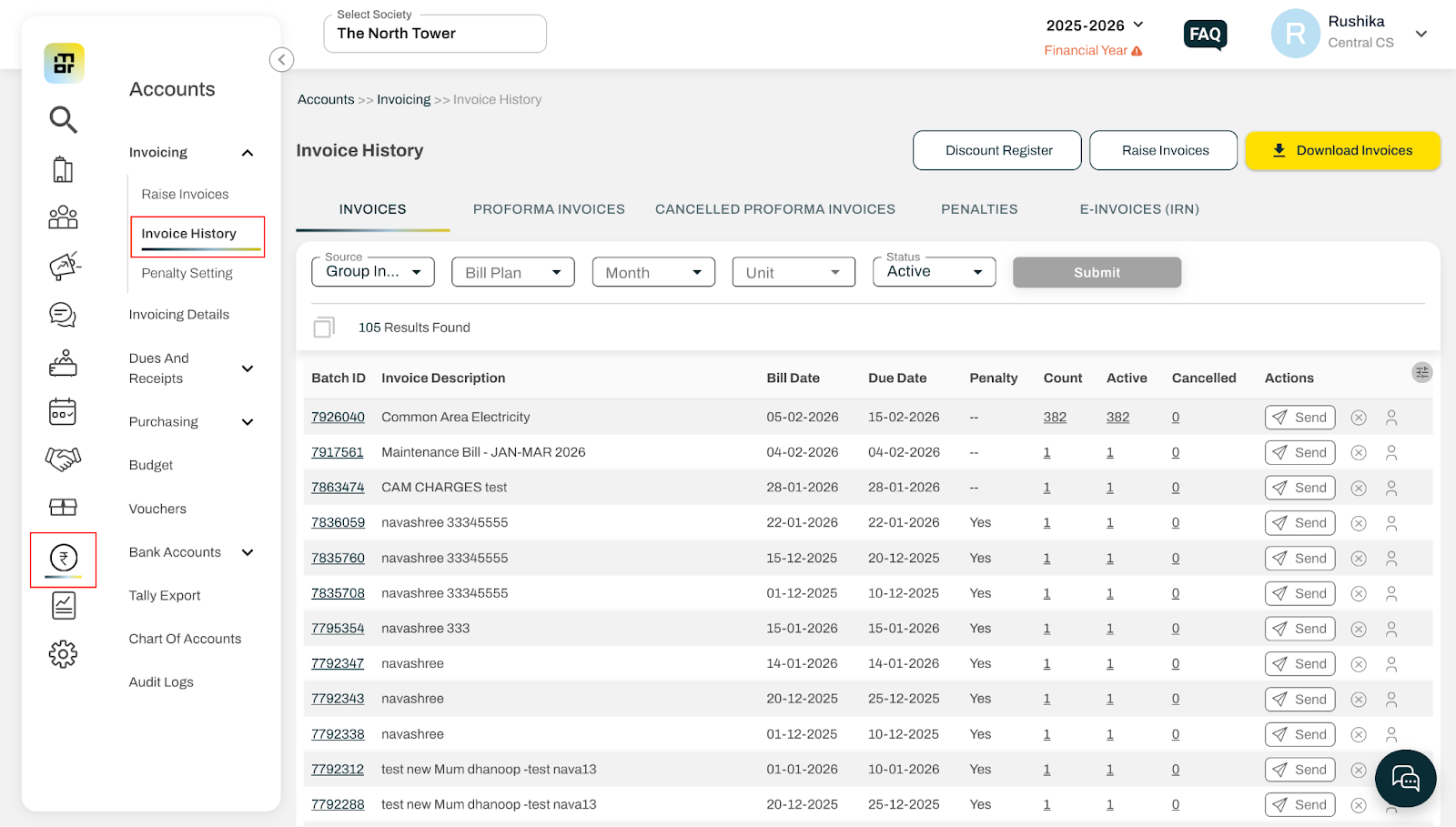
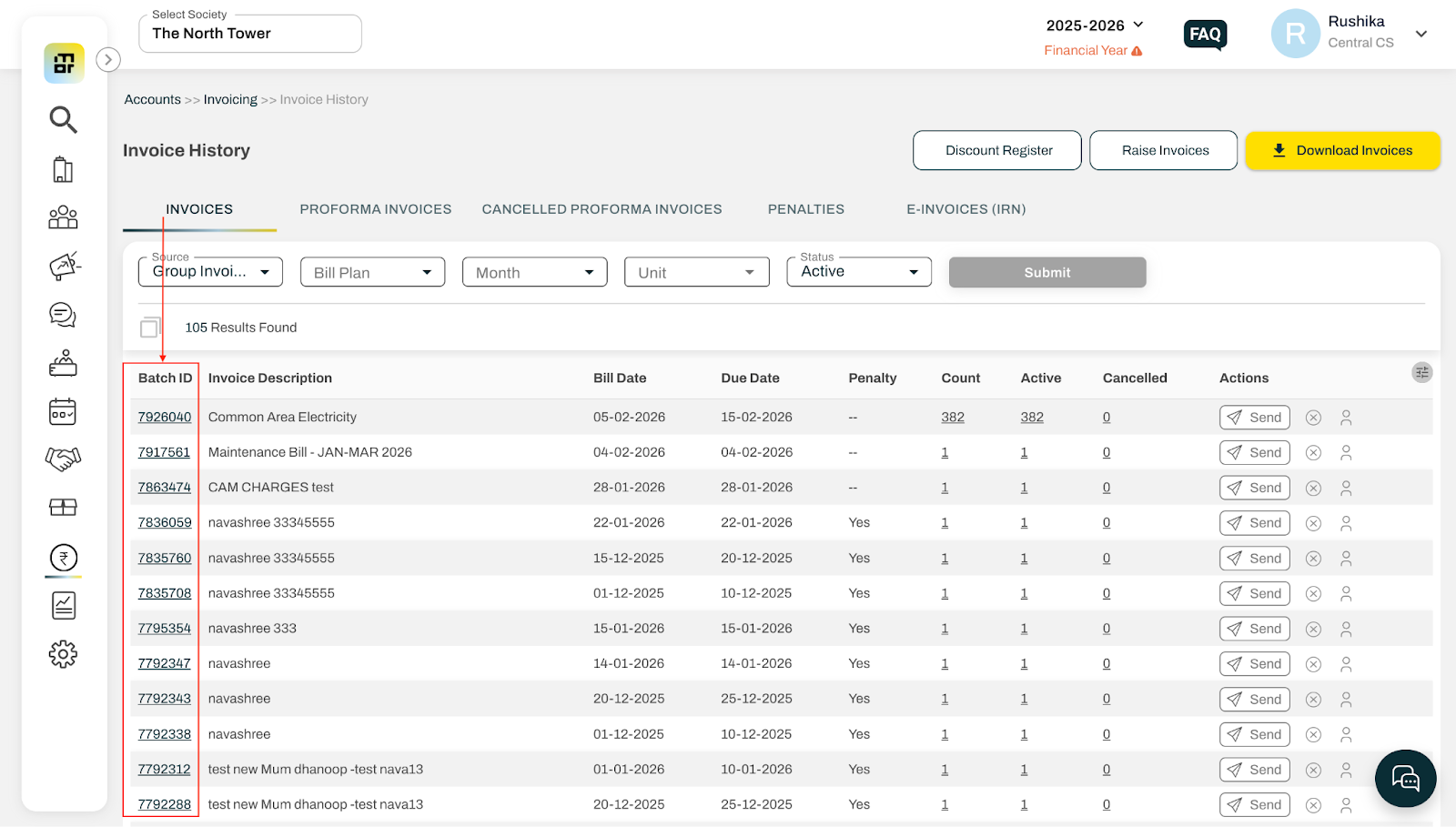
From the list of invoice batches, select the Batch ID corresponding to the invoice you want to review.
Click on the invoice number of the required invoice.
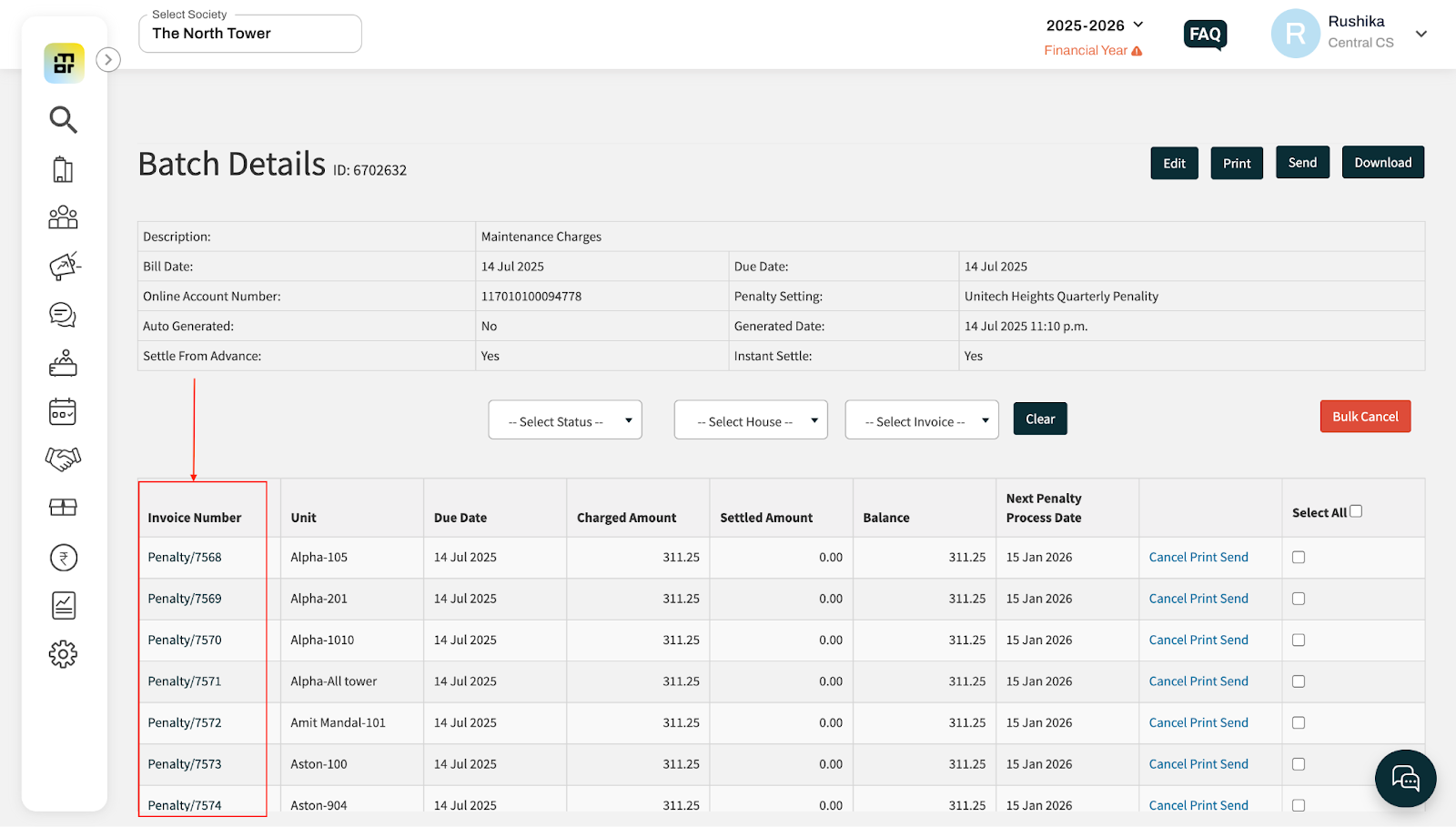
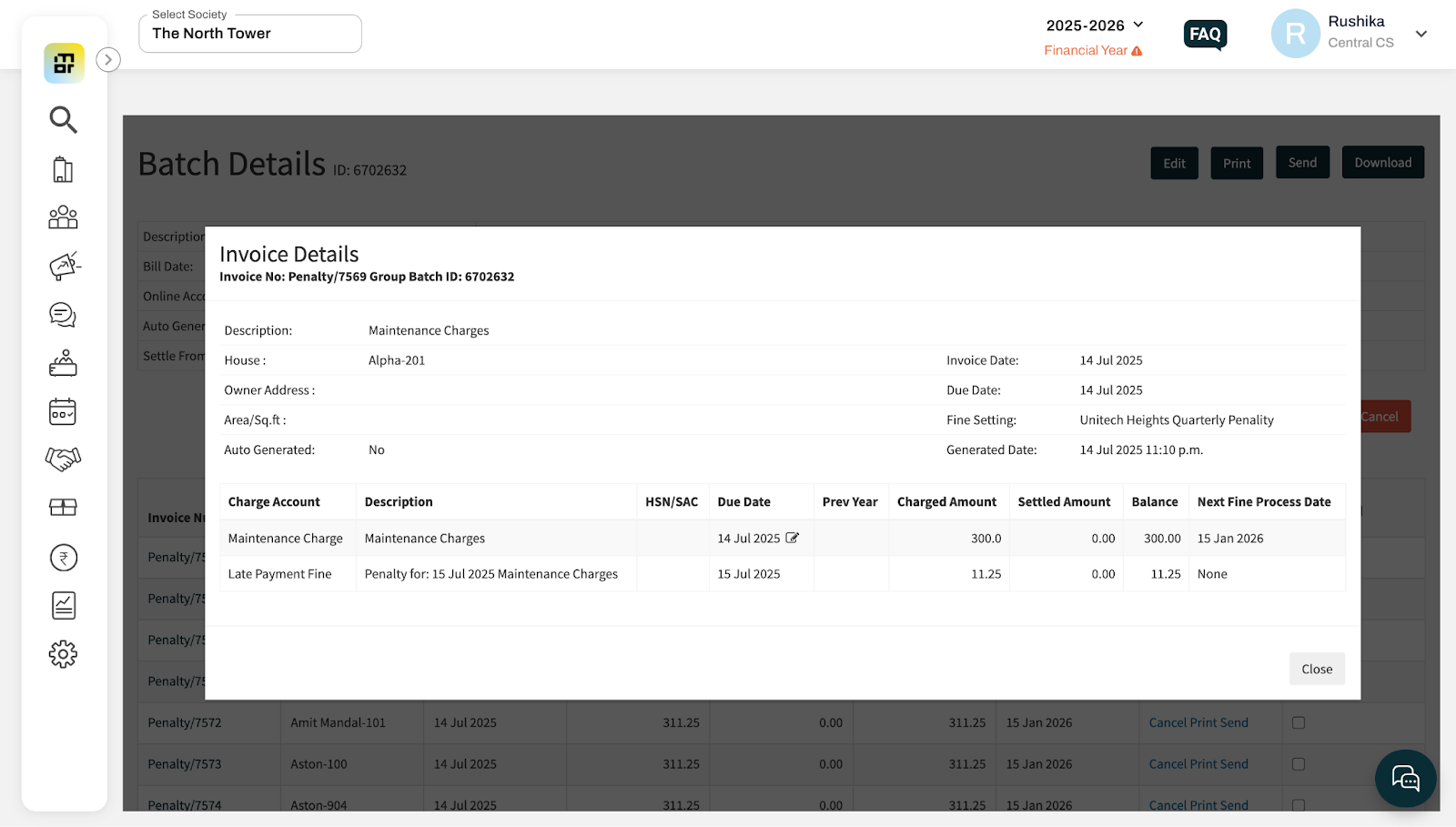
The invoice detail page will open, where you can view the complete invoice breakup, including all charge items, amounts, penalties and applicable taxes.
Method 2: View charge items for a specific flat from Dues Tracker
This method is helpful when you want to check invoices raised for a particular flat or unit.
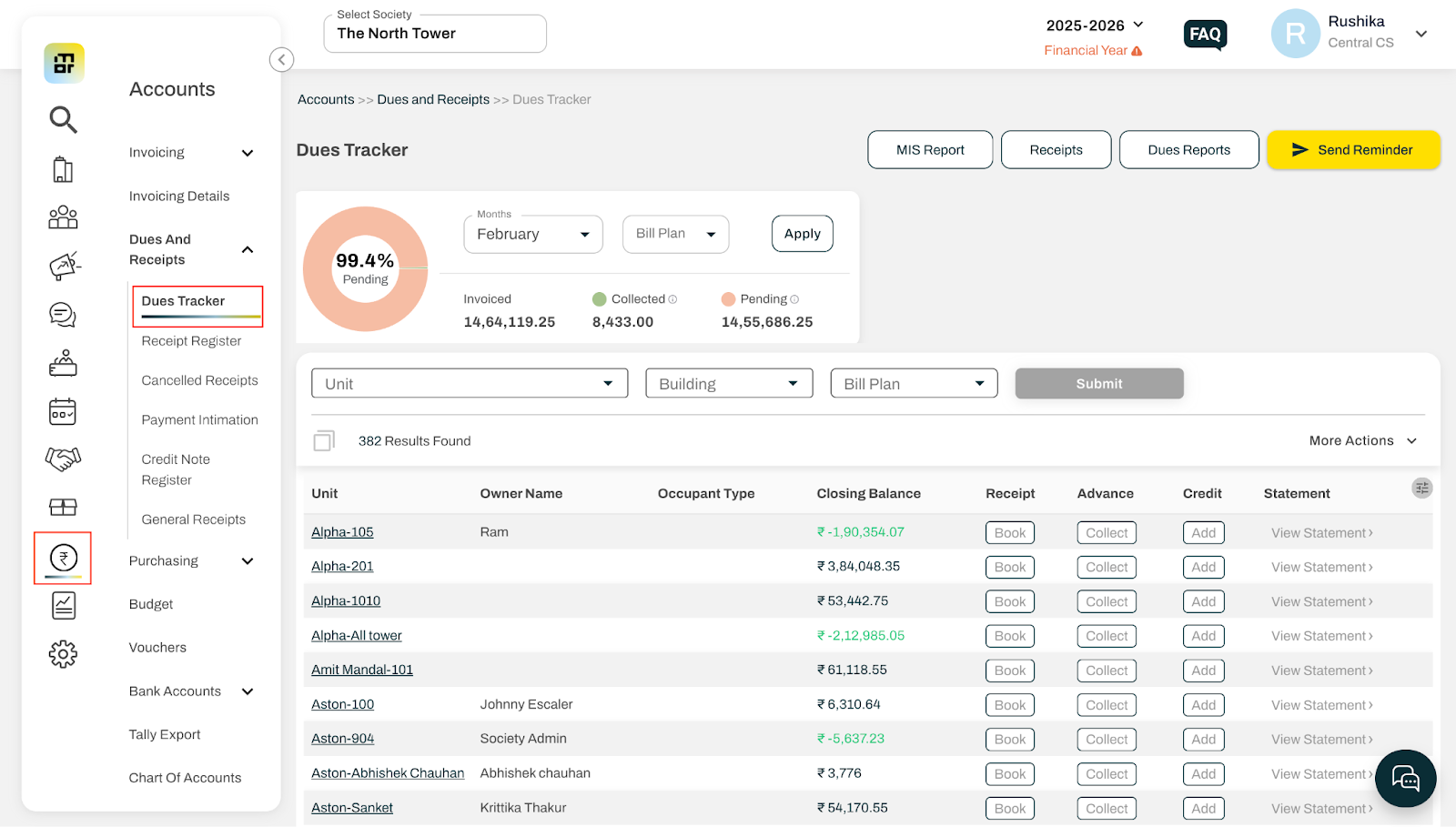
Go to Accounts and select Dues Tracker under the Dues & Receipts section.
Apply filters to select the specific flat/unit for which you want to view invoice details.
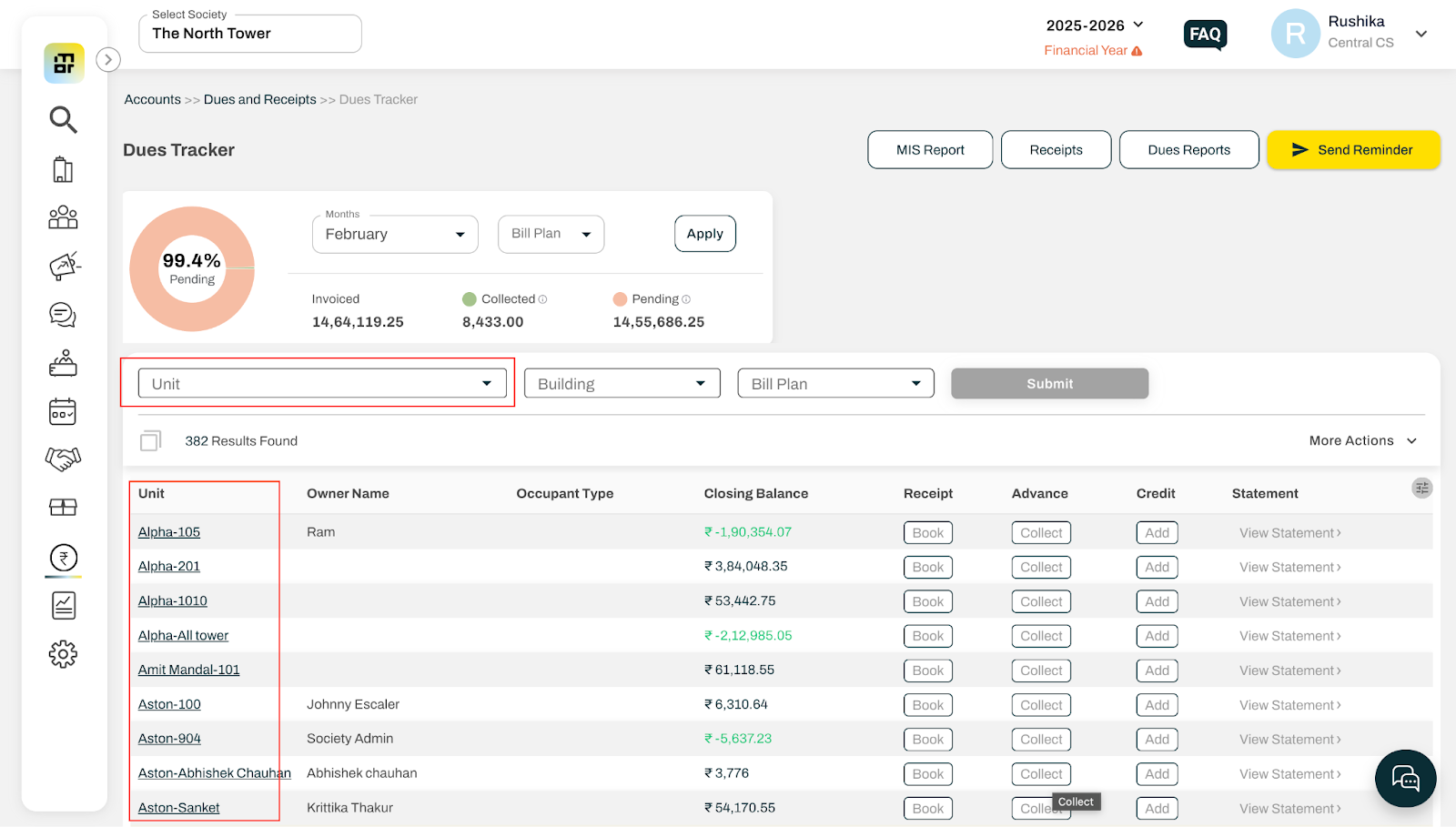
The system will display all generated and unsettled invoices for the selected flat. You will be able to see the detailed invoice breakup, including individual charge items and their respective amounts.