
AI-Based Auto Bank Reconciliation
What is AI-Based Auto Bank Reconciliation?
It is an AI-powered upgrade to the Bank Reconciliation module that allows you to upload a bank statement in any format and have the system automatically identify columns, extract transaction data, match it with ERP records, and present a reconciliation summary — without any manual column mapping or file formatting.
How to use AI-Based Auto Bank Reconciliation?
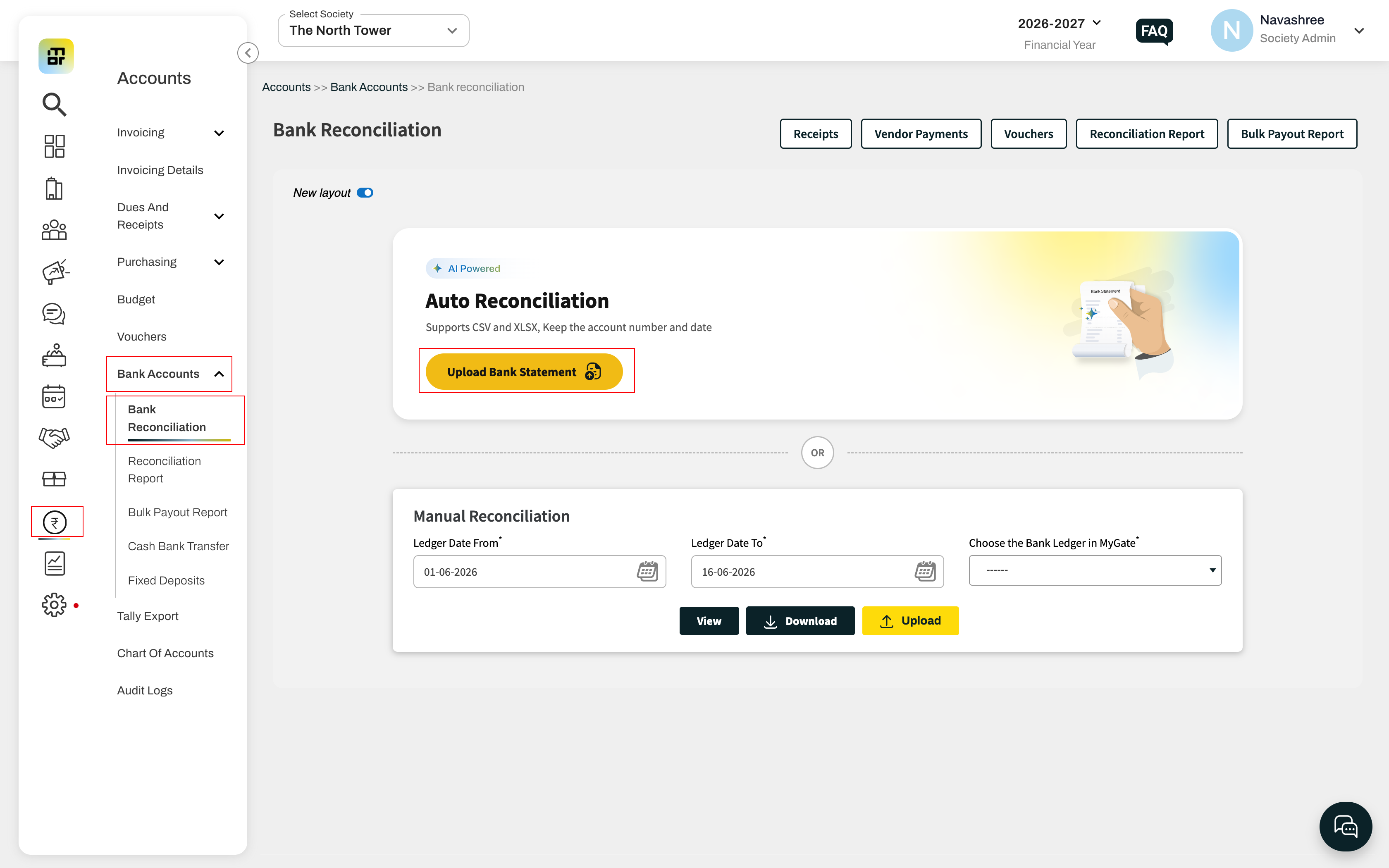
Step 1: Open Bank Reconciliation
Go to Accounts >> Bank Accounts
Click on Bank Reconciliation and Upload Bank Statement
(You can upload the raw bank statement exactly as downloaded from your bank. The AI handles data cleanup, irrelevant row removal, and column identification automatically.)
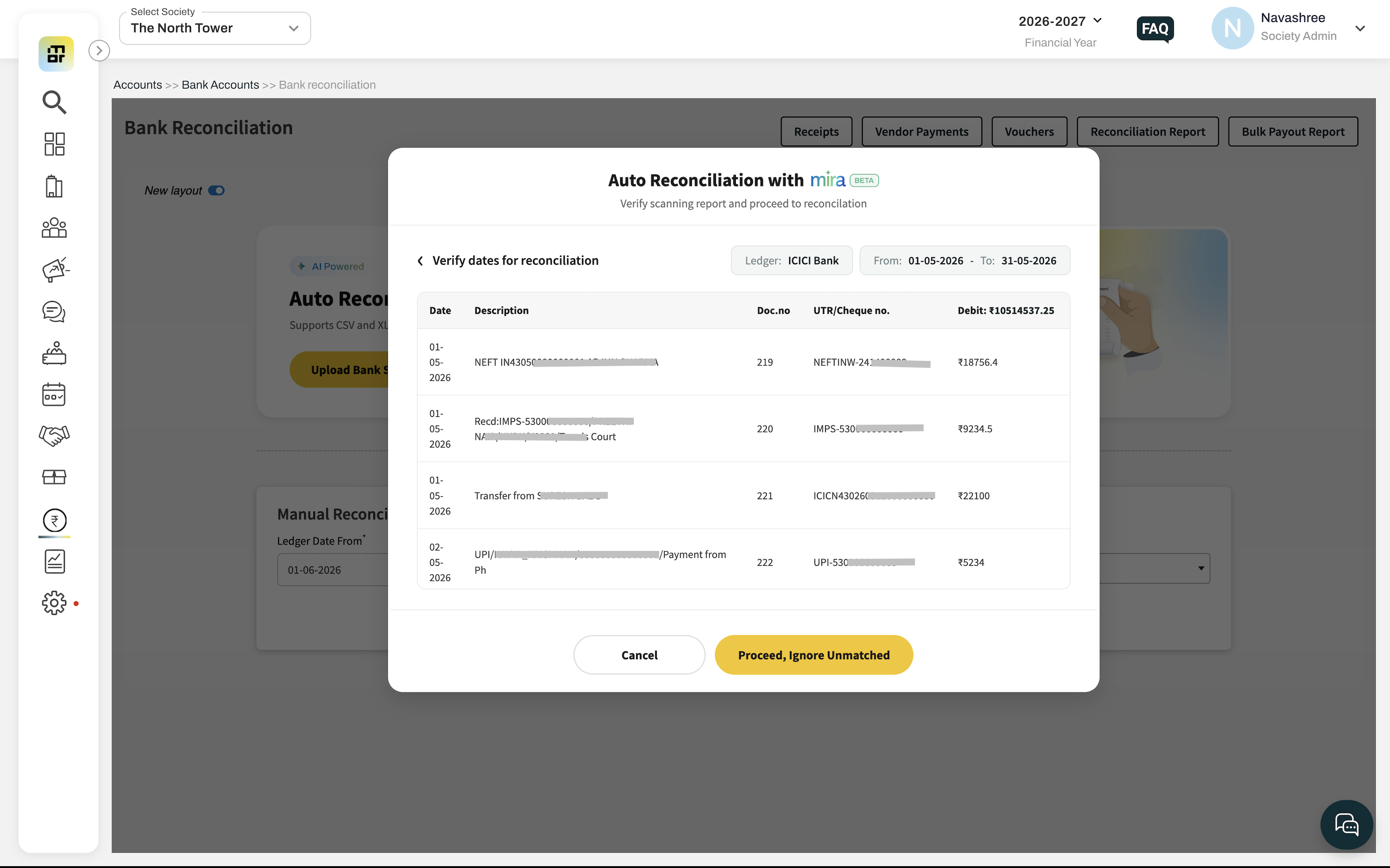
Step 2: Click on Proceed after checking the Bank ledger and date period
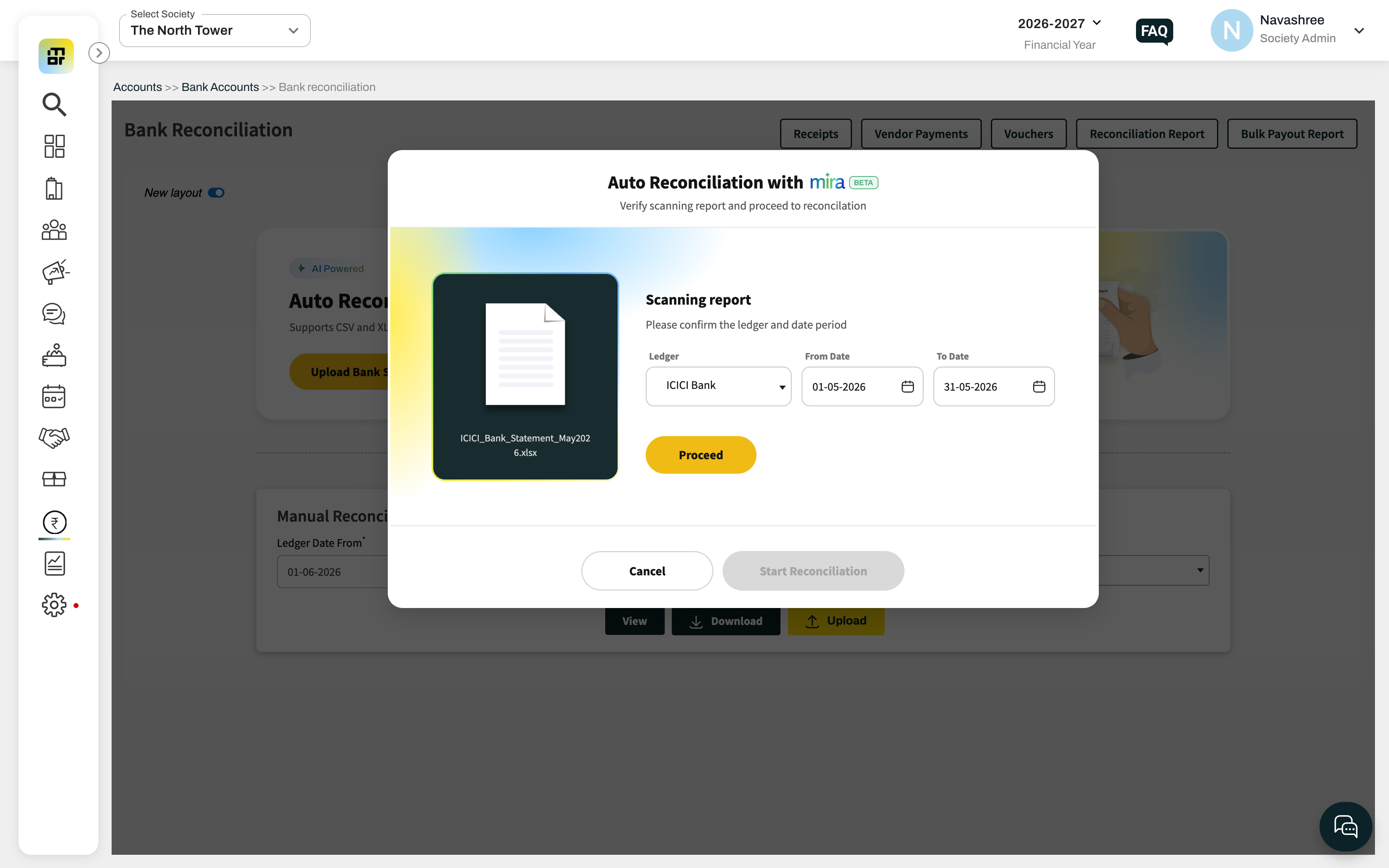
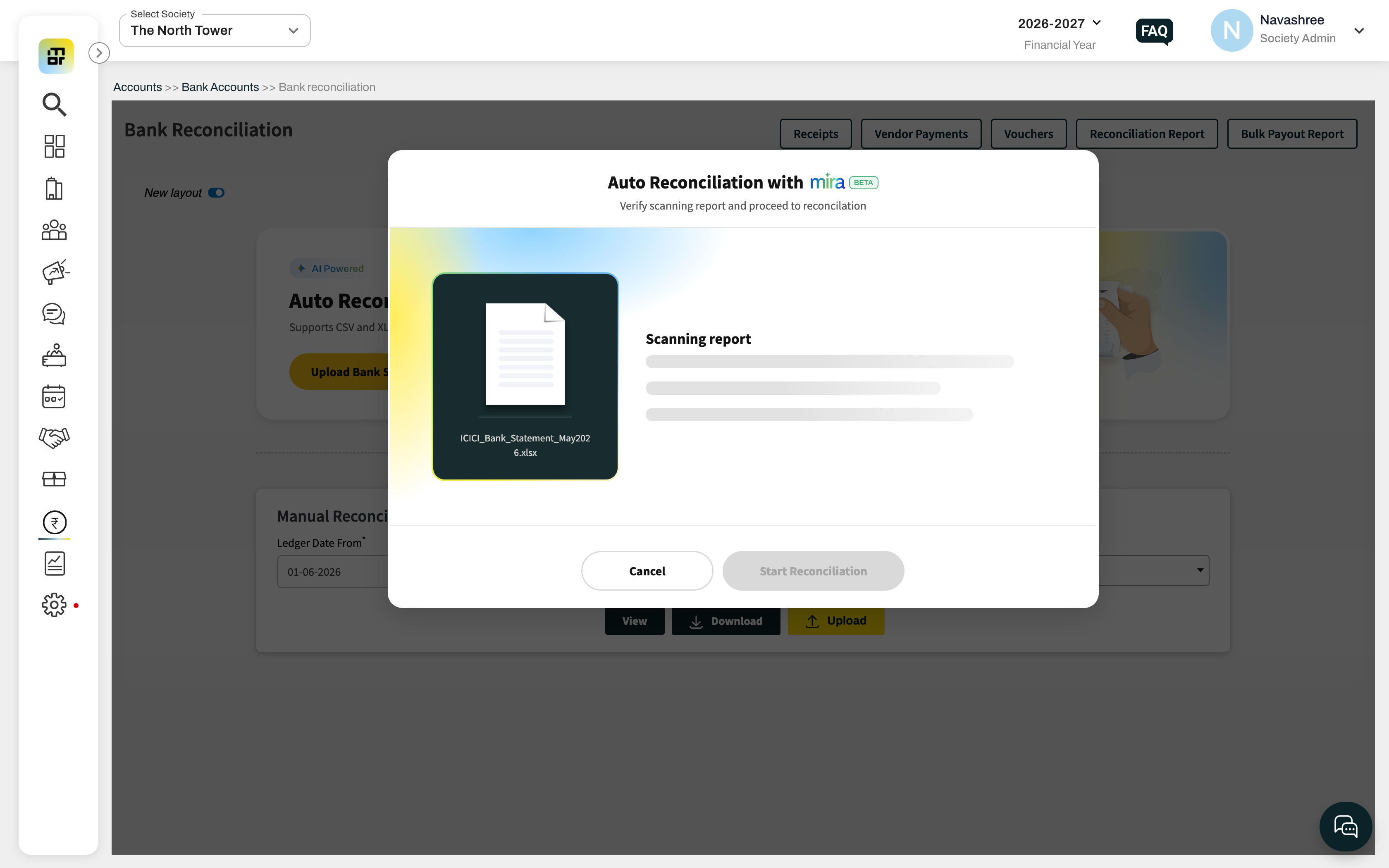
AI Starts Data Extraction
The AI identifies and extracts the following from the uploaded statement:
Bank account details
Statement date period (from and to date)
Transaction dates
Transaction amounts
DR / CR indicators (or Deposit / Withdrawal where applicable)
UTR numbers (transaction reference)
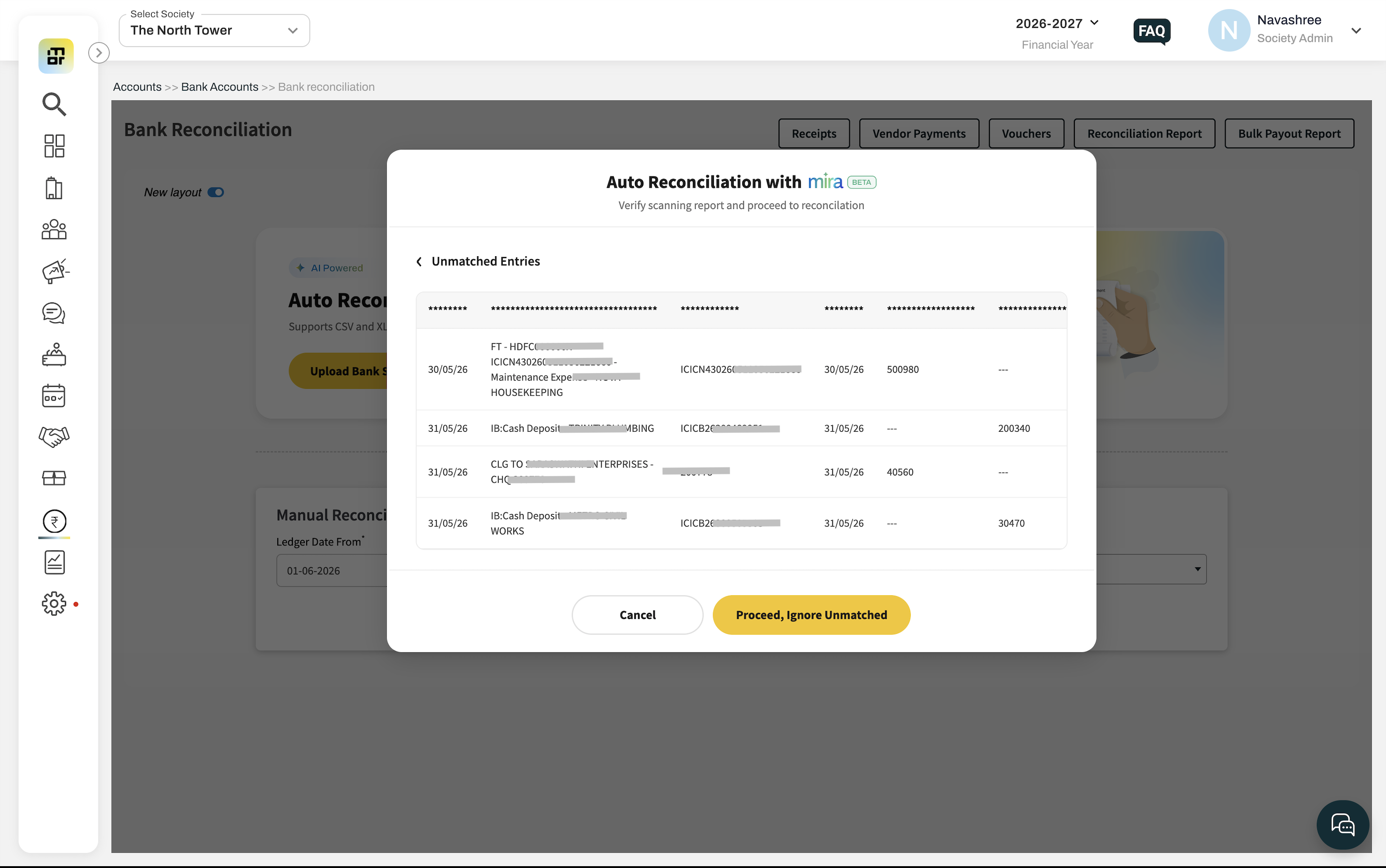
Reconciliation summary screen- The summary screen shows:
Bank Ledger — dropdown to select or confirm the account
Reconciliation Period — date range with a picker
Matched — count of matched transactions with system
Not Matched — count of total unmatched transactions with system
Bank Balance After Reconciliation — expected bank balance after reconciliation
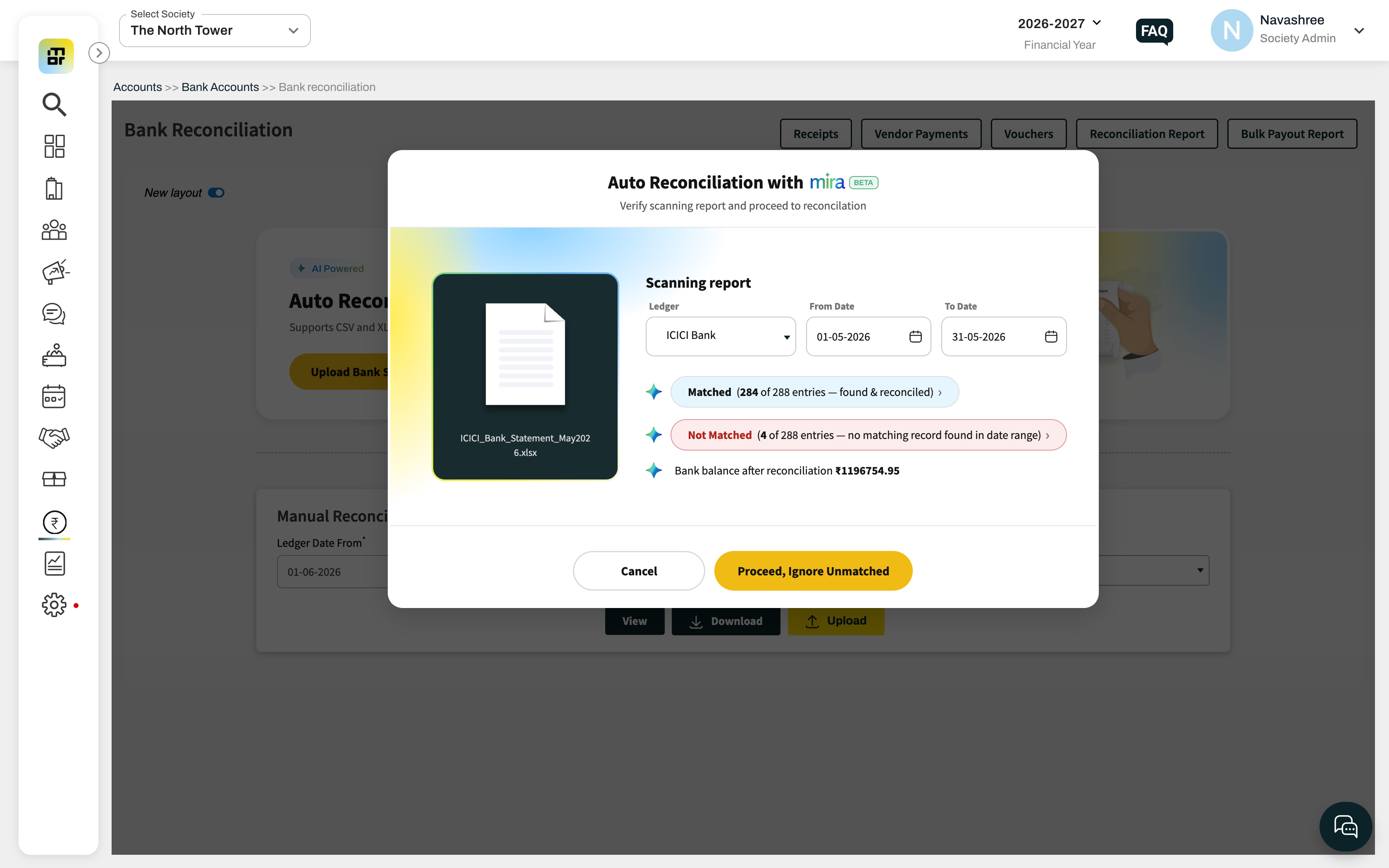
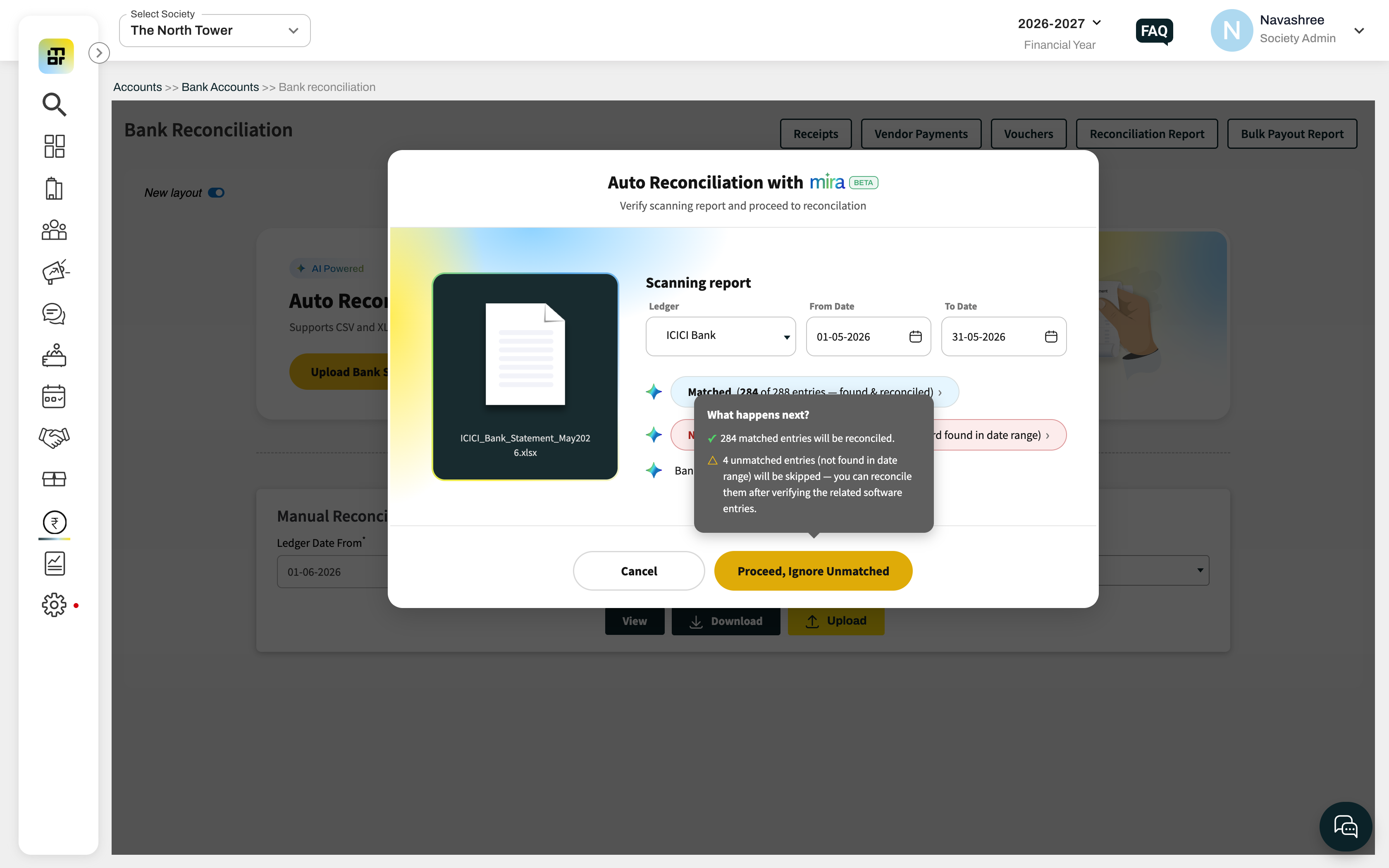
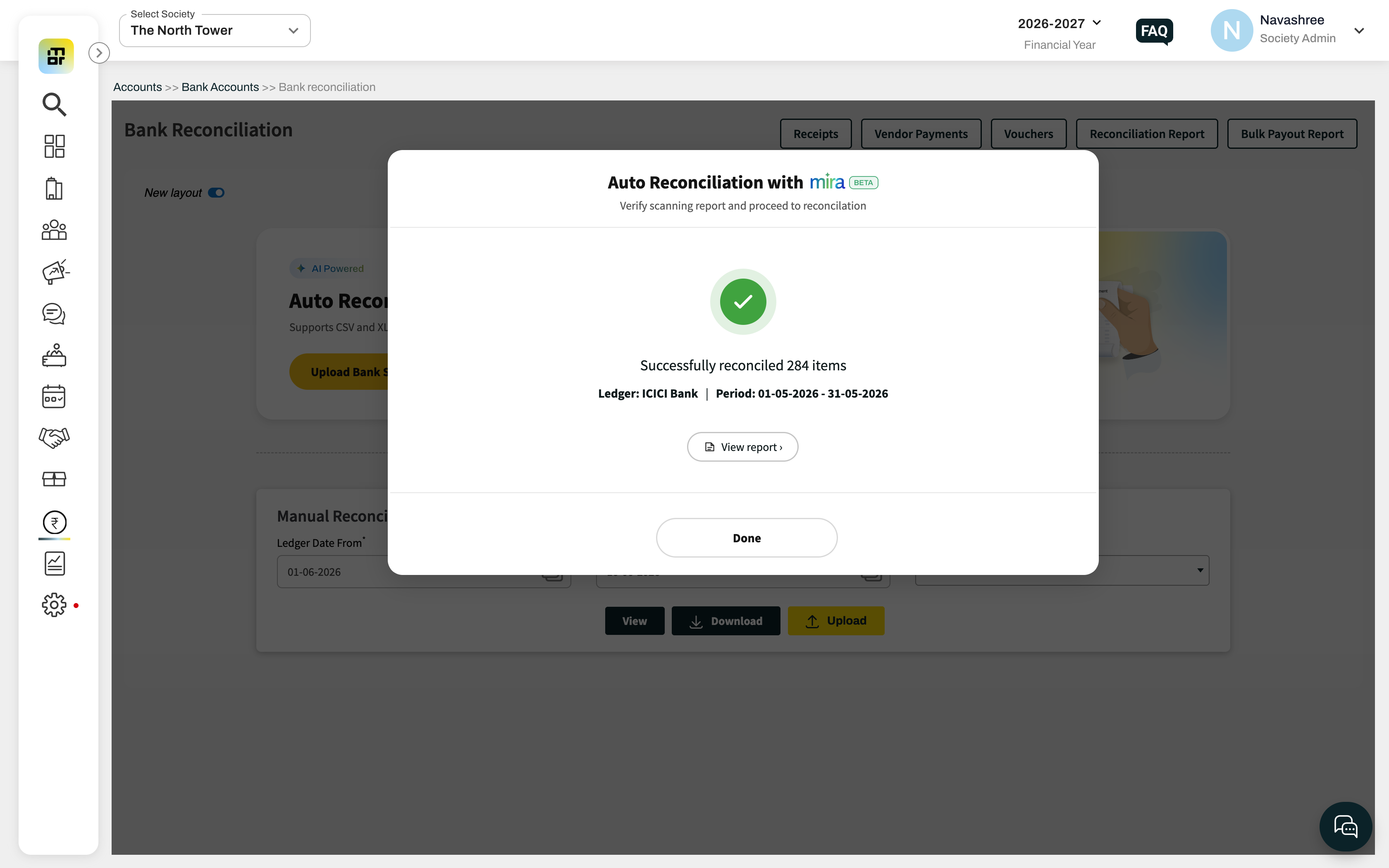
Step 3: Click on Proceed, Ignore Unmatched
What file format are supported?
The system accepts CSV, XLSX, and XLS files. You no longer need to convert your bank statement into a specific format before uploading.
Note: The generated response file appears in the existing Bulk Download section.
Additional Notes:
This feature is available only to select societies as part of a limited beta release.
While this is a paid feature, it is being provided free of charge during the beta period.