
Vendor Cheque Printing
What is Vendor Cheque Printing?
Vendor Cheque Printing allows you to print cheque details directly from the dashboard onto a physical cheque leaf. Instead of manually writing cheque details, you can enter the payment information in the system and print it accurately using a compatible printer.
How do I print a vendor cheque?
Step 1: Open Vendor Bills & Payments
Go to Accounts → Purchasing→Vendor Bills & Payments Click on the Cheque Print shortcut.
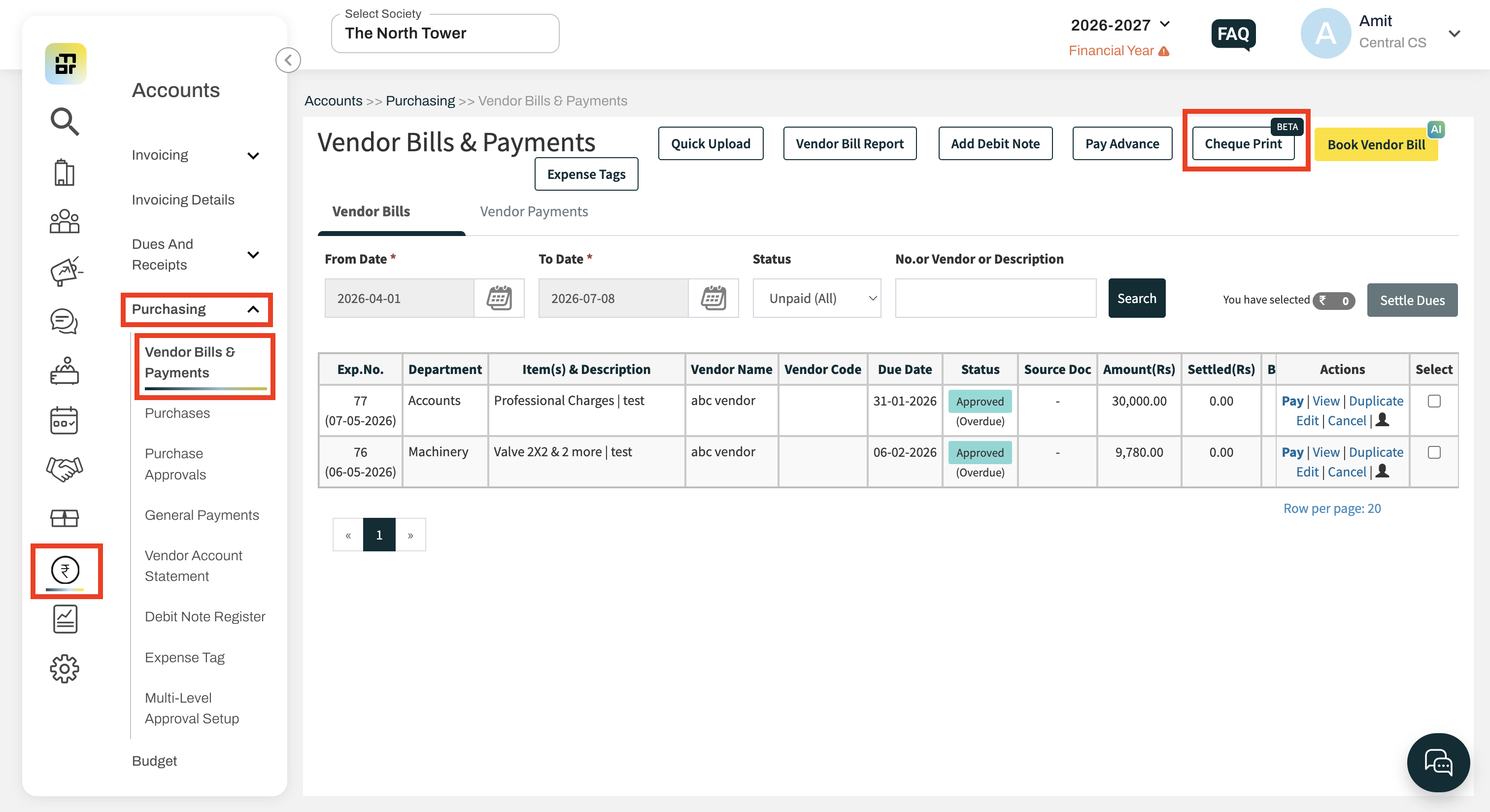
Step 2: Select the Transaction Type
Choose one of the following options:
Advance – To make an advance payment to the vendor.
Bills – To make payment against vendor bill.
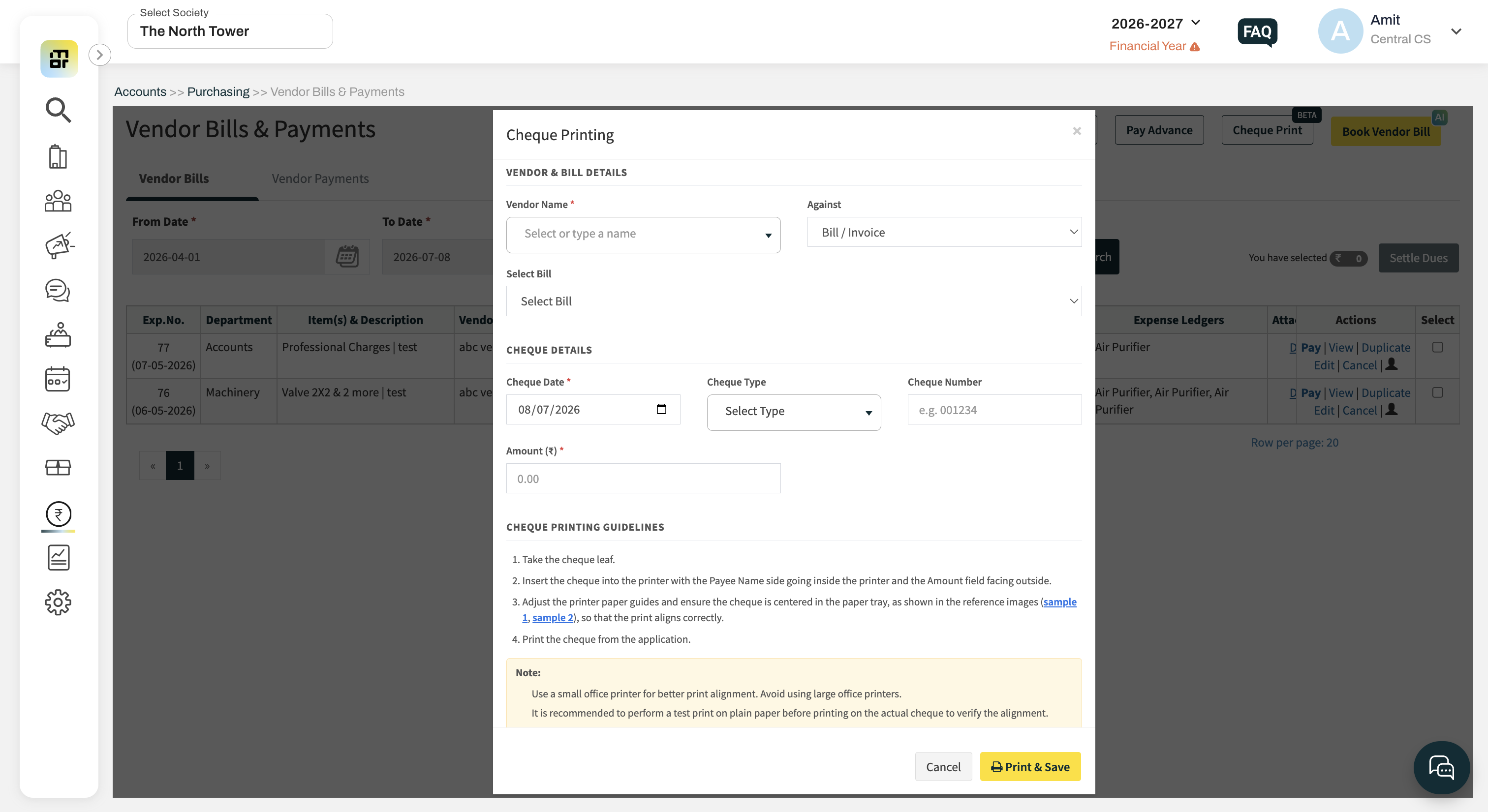
Step 3: Enter Cheque Details
Select the Vendor Name and fill in the cheque details:
Cheque Date
Cheque Type- Account Payee/Bearer (Do not select any option for making it blank)
Cheque Number
Amount
Step 4: Print the Cheque
After verifying the details, click Print & Save.
How do I place the cheque in the printer?
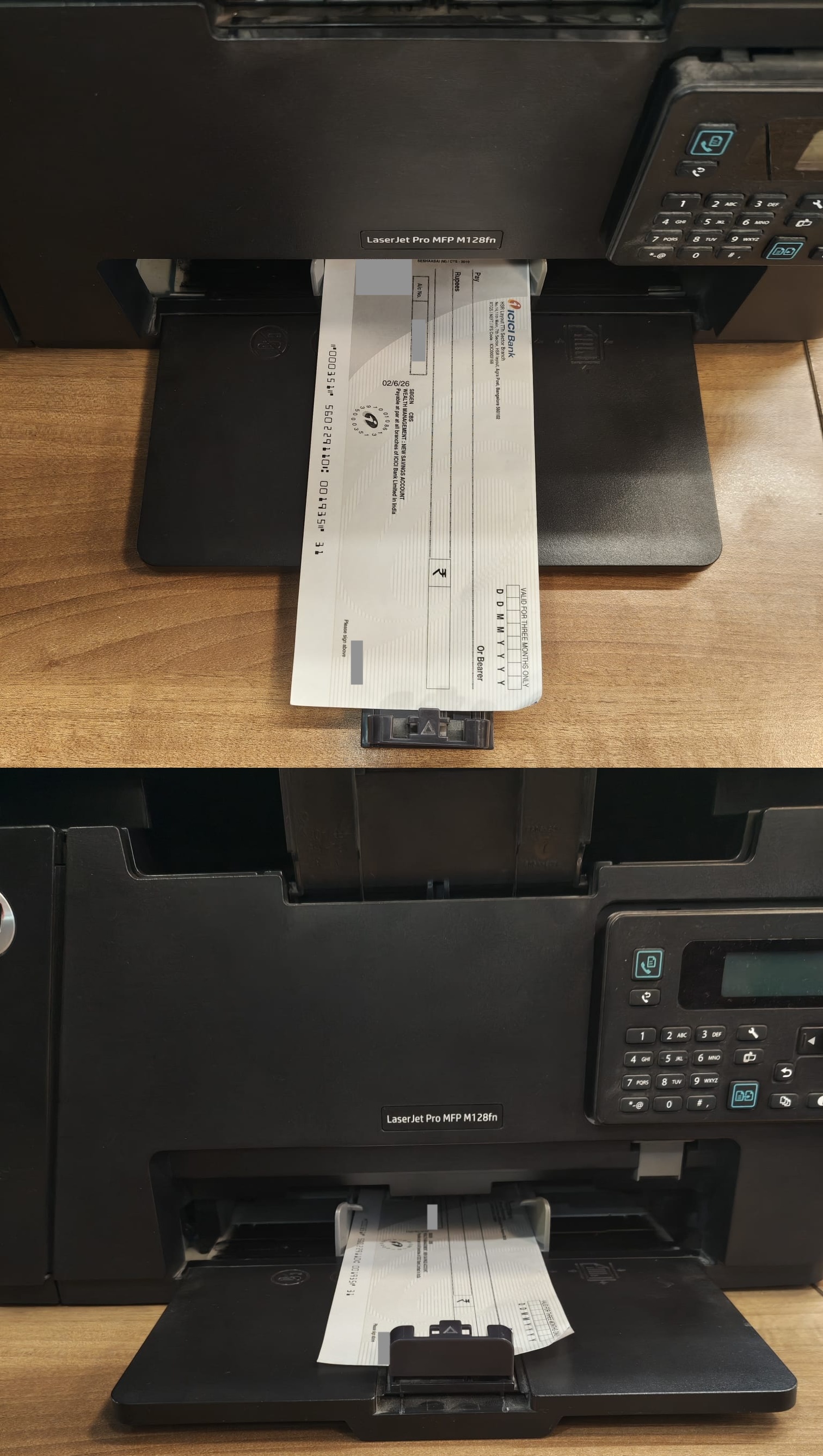
Before printing, follow these steps:
Take the cheque leaf.
Insert the cheque into the printer with the Payee Name side going inside the printer and the Amount field facing outside.
Adjust the printer paper guides and ensure the cheque is centered in the paper tray for proper alignment.
Print the cheque from the dashboard.
What type of printer is recommended?
For the best printing results:
Use a small office printer.
Avoid using large office printers as they may affect cheque alignment.
Perform a test print on plain paper before printing on the actual cheque.
Can I search for a vendor?
Yes. The Vendor Name field is searchable, allowing you to quickly find and select the required vendor.
Does cheque printing create a payment voucher?
No. The cheque printing will not create any payment voucher.
What should I do before printing on an actual cheque?
It is recommended to:
Verify all cheque details.
Check the printer alignment.
Perform a test print on plain paper.
Print on the actual cheque only after confirming the alignment.
Note: The PDF of the generated cheque details will saved in the Download History (Financial Reports >> Uploads and Downloads >> Download Bulk Reports)