
Invoice Edit / Replace After Generation
What is Invoice Edit / Replace After Generation?
Invoice Edit / Replace allows you to update selected invoice details even after an invoice has been generated, without changing the original invoice number. This helps correct invoice content while maintaining accounting continuity.
How do I replace an invoice?
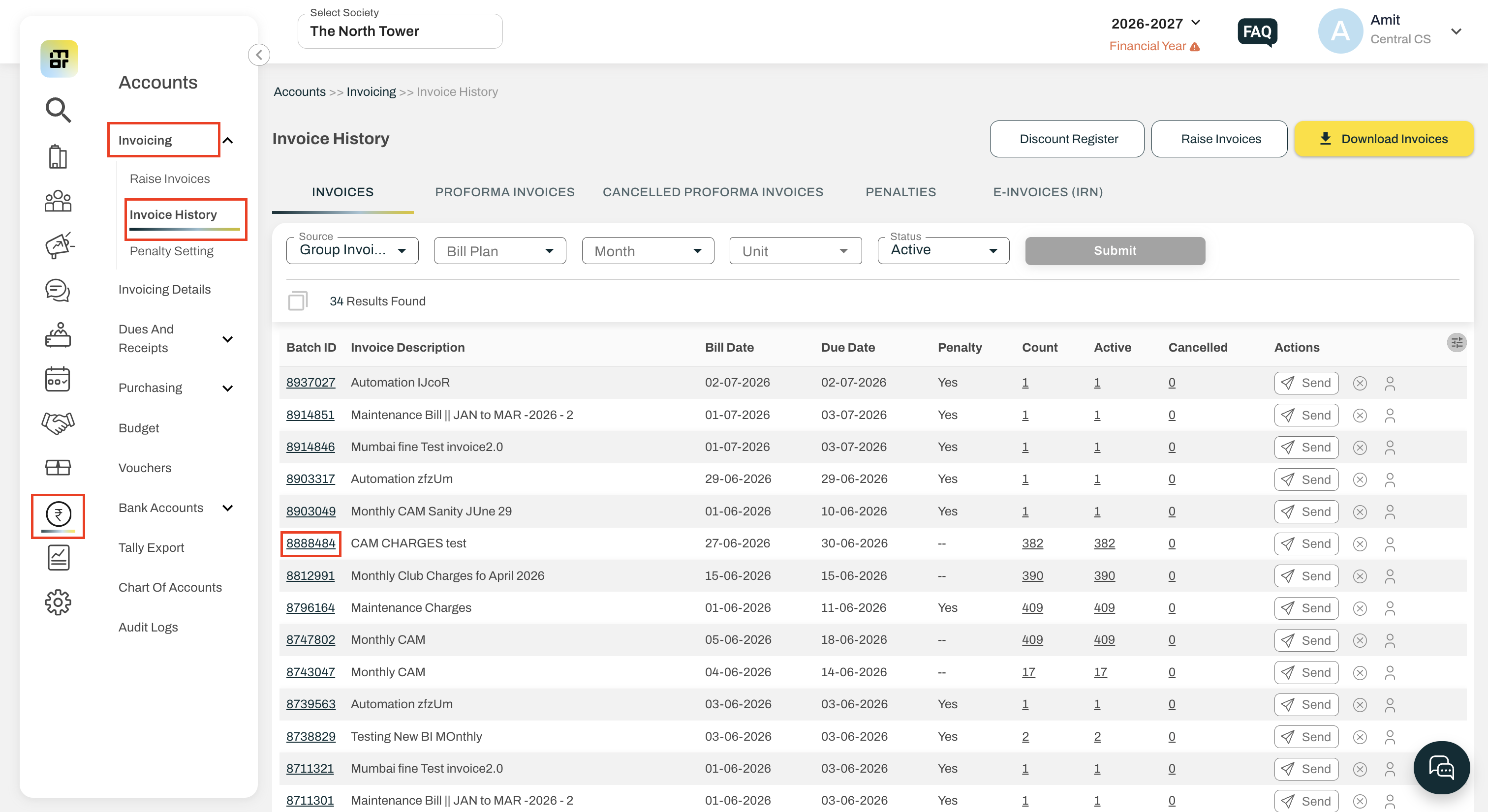
Go to: Accounts → Invoicing → Invoice History → Click on the Batch ID containing the invoice that you want to replace
Click the Replace Invoice button → Select the house/unit whose invoice needs to be replaced.
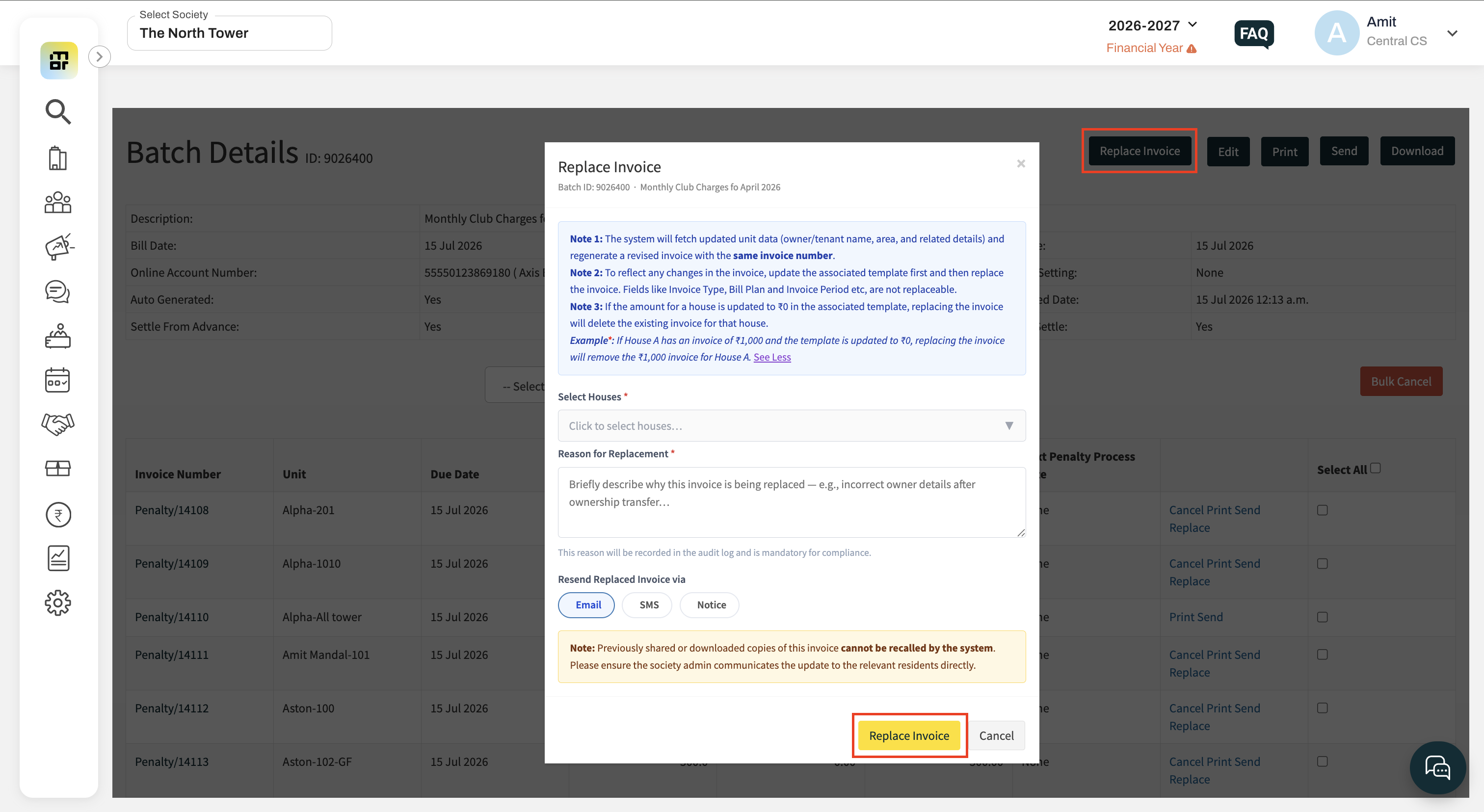
Review the editable details, make the required changes, provide the Reason for Replacement, and click Replace Invoice.
What details can be updated through Invoice Replace?
The following sections can be updated:
Item Details
Credit Details
Additional Notes (and other optional sections)
Receipt Box in the invoice footer
Previous Payments displayed on the invoice
Custom Entries
House/Owner/Tenant Details
The following item-level fields are editable:
Item Name
Amount
GST
HSN Code
Quantity / Item Count
Amount-based values
GST Exemption
Settle from Advance
Custom Entries
House Details
What cannot be changed during Invoice Replace?
The following details cannot be modified:
Invoice Type
Bill Plan
Invoice Description
Invoice Period
Invoice Cycle
Beneficiary Bank Account Ledger
Invoice Sequence
Penalty & Arrears Configuration
Additional Settings
Footer Notes
Will the invoice number change after replacement?
No. The system generates a new version of the invoice while retaining the same invoice number.
Until when can an invoice be replaced?
Invoice replacement is allowed only until:
The Due Date of the invoice, or
11th of the following month (before GSTR-1 filing),
whichever is earlier.
When is invoice replacement not allowed?
Replacement is not allowed if the invoice:
Is Cancelled
Is Fully Paid
Has a Credit Note
Is a B2B e-Invoice
Is linked to an Amenity Booking or MIMO
Belongs to a deleted template
If the associated template has been deleted, the Replace button will be disabled with the following message:
"Invoice cannot be replaced because the associated template has been deleted."
What should I do before replacing an invoice?
Always update the associated invoice template first if your changes affect invoice amounts or line items.
Important:
If the amount for a house is updated to ₹0 in the associated template, replacing the invoice will delete the existing invoice for that house because there is no billable amount remaining.
Example:
House A has an invoice of ₹1,000.
The template amount is updated to ₹0.
Replacing the invoice will remove the existing ₹1,000 invoice.
What happens to invoices that have already been downloaded or shared?
The system creates the updated invoice with the same invoice number.
However, invoices that have already been downloaded, printed, or shared cannot be recalled automatically. Society management should ensure that residents receive the latest version.
Can I resend the updated invoice?
Yes.
After replacing the invoice, you can resend it through:
Email
SMS
Notice
Note:
Residents using the Mygate App will receive App Notifications, while SMS will be sent only to residents who are not using the app.
Are replacement activities tracked?
Yes.
The system maintains a complete audit trail including:
Replaced By
Replaced On
Previous Values
Updated Values
Reason for Replacement (Mandatory)
How can I identify whether invoices have been replaced?
A flag is displayed on the invoice batch indicating that one or more invoices in the batch have been replaced.
What happens to Mumbai penalty/interest after invoice replacement?
For Mumbai societies, the existing penalty/interest is carried forward to the replaced invoice. The system does not recalculate or apply any additional penalty during the replacement process.
Important Note:
Before replacing an invoice, update the associated template if any invoice values need to be changed. The replaced invoice will always be generated using the latest values and configurations from the associated template.