
Vendor MIS Report
1. What is Vendor MIS Report?
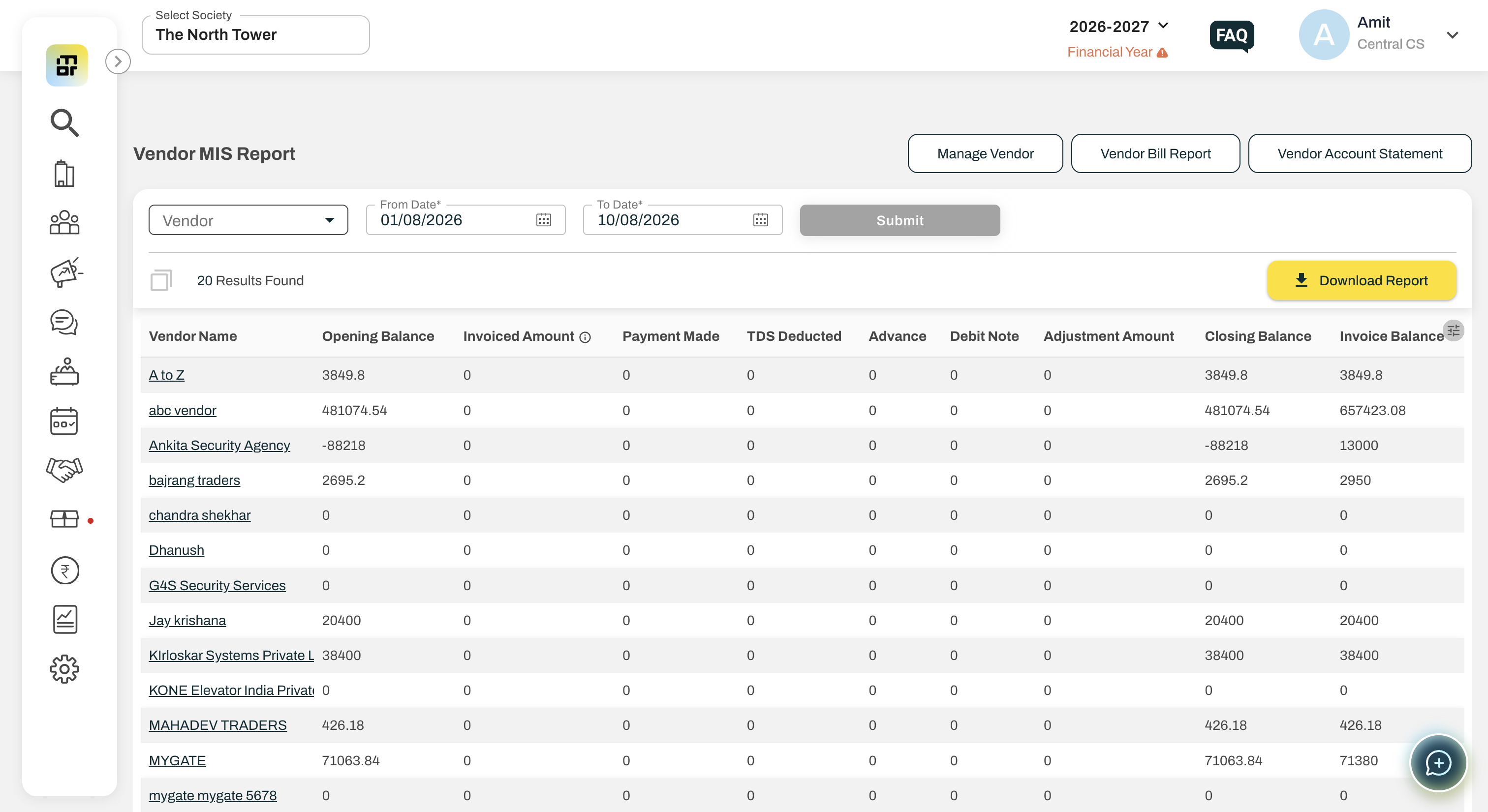
The Vendor MIS Report provides a consolidated view of vendor-wise bills, payments, advances, TDS, adjustments, and outstanding balances in one report.
2. Where can I find the Vendor MIS Report?
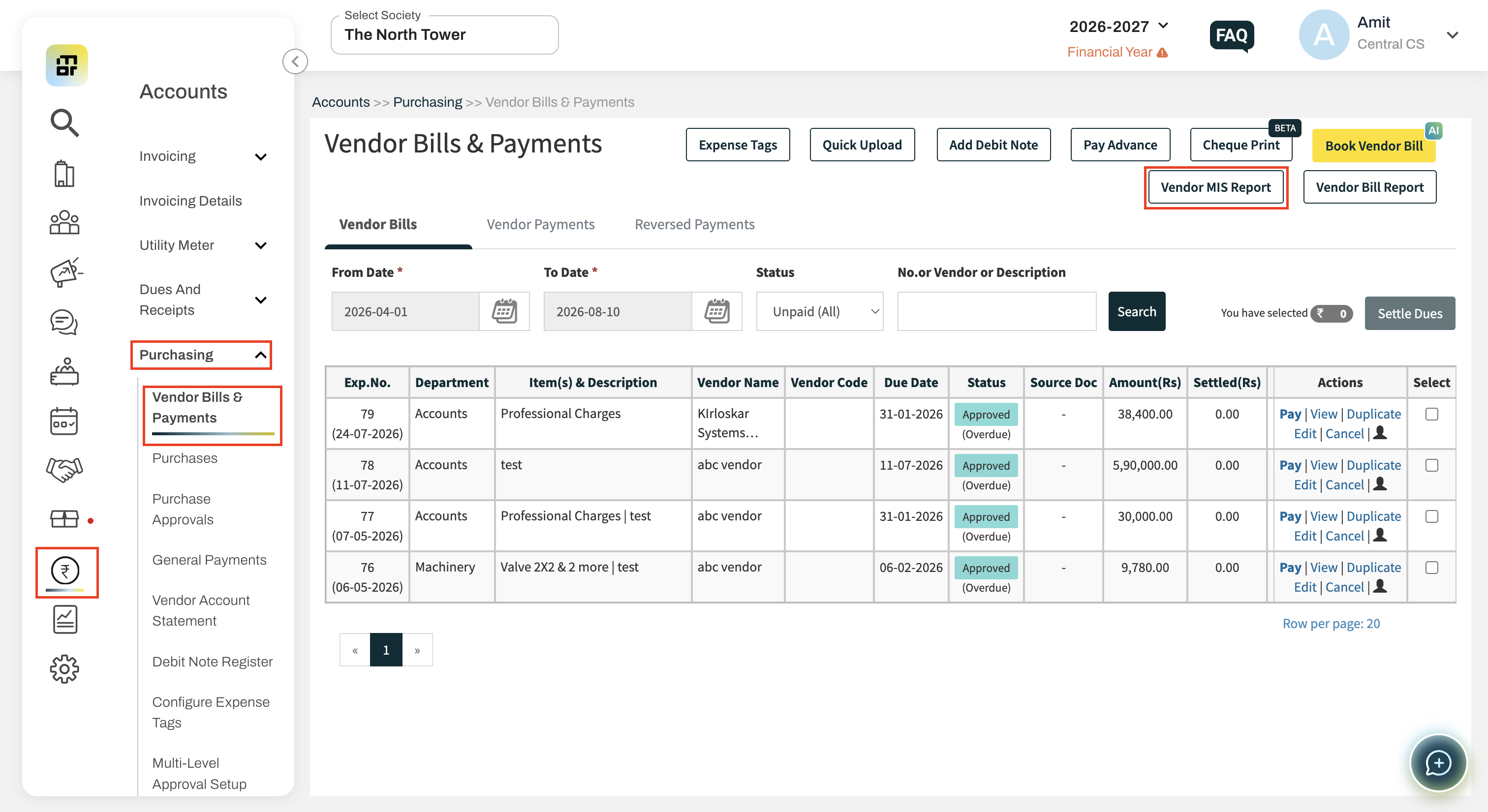
Go to Accounts >> Purchasing >> Vendor Bills & Payments >> Vendor MIS Report.
3. What filters are available?
You can filter the report using:
Vendor – Single or multiple vendors
From Date
To Date
Use Submit to apply the filters or Reset Filters to clear them.
4. What information is available in the report?
The report provides:
Vendor Name
Department
Opening Balance
Invoiced Amount
Payment Made
TDS Deducted
Advance Paid
Debit Note
Adjustment Amount
Invoice Balance
Closing Balance
5. What does Opening Balance represent?
Opening Balance shows the combined balance of the vendor's Dues and Advance ledgers as of the selected start date.
6. What does Invoiced Amount represent?
It shows the total value of vendor bills booked through Book Vendor Bill during the selected period.
7. What does Payment Made represent?
It shows the total payments made through the Vendor Payment module during the selected period.
8. What does TDS Deducted represent?
It shows the total TDS deducted through Book Vendor Bill & Pay Advance during the selected period.
9. What does Advance Paid represent?
It shows the total advance payments made through the Pay Advance module during the selected period.
10. What does Debit Note represent?
It shows the total dues adjusted through Debit Note during the selected period.
11. What does Adjustment Amount represent?
It shows the total value of Journal Voucher entries passed against the vendor's Dues and Advance ledgers during the selected period.
12. What does Invoice Balance represent?
Invoice Balance shows the total pending invoice balance till date.
13. What does Closing Balance represent?
Closing Balance shows the combined balance of the vendor's Dues and Advance ledgers as of the selected end date.
14. Can I view the vendor's detailed account statement?
Yes. Click on the Vendor Name to open the Vendor Account Statement for the selected period.
15. Can I hide columns from the report?
Yes. Use the column selection dropdown to show or hide columns based on your requirement.
Vendor Name and Closing Balance will always remain visible and cannot be hidden.
16. Can I download the Vendor MIS Report?
Yes. Click Download Report to download the report. The downloaded report will follow the applied filters and selected column visibility.