
How to mark a maintenance task as complete?
To mark a task as complete on the Maintenance Calendar, follow these steps:
Go to Assets & Inventory >> Assets >> Maintenance Calendar
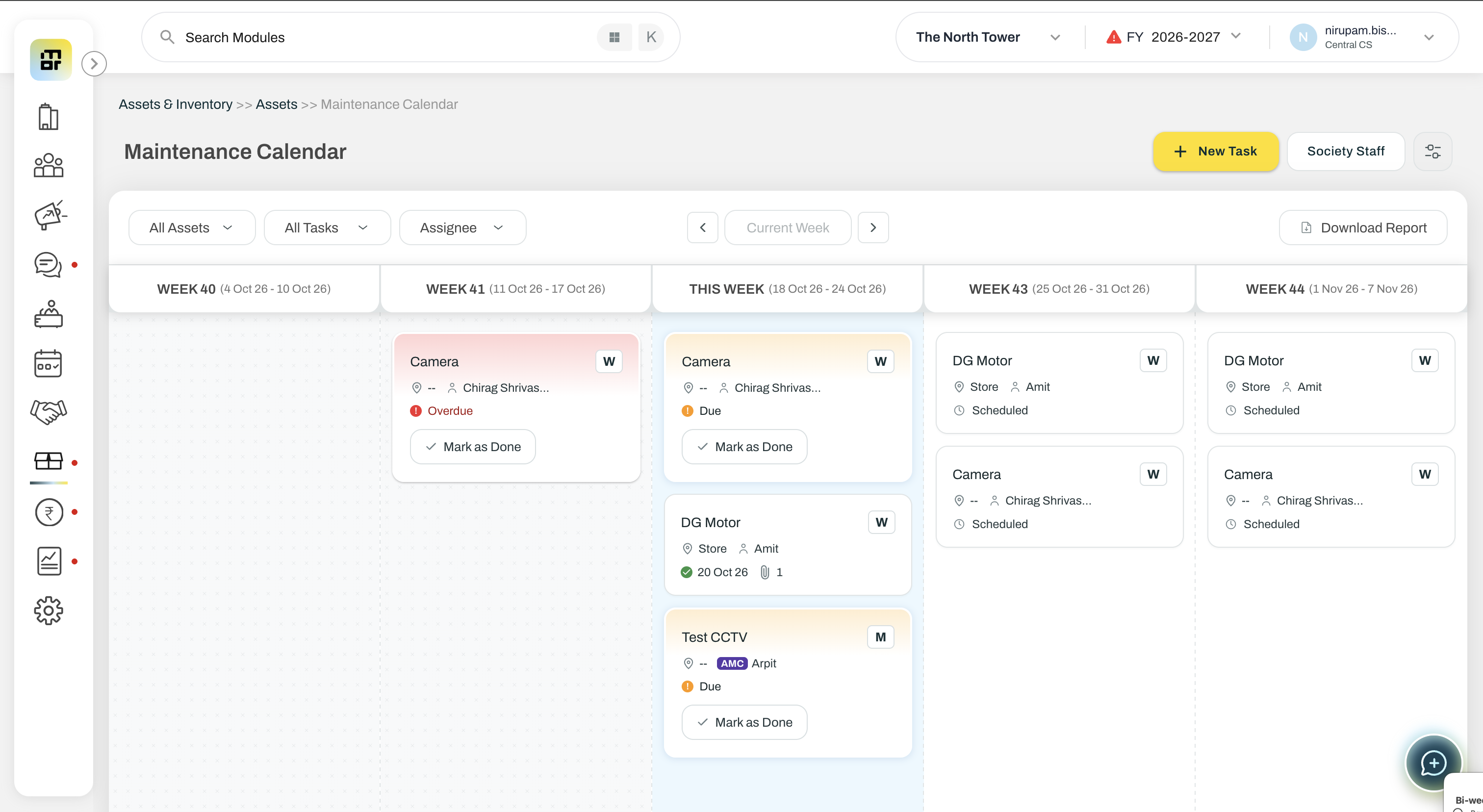
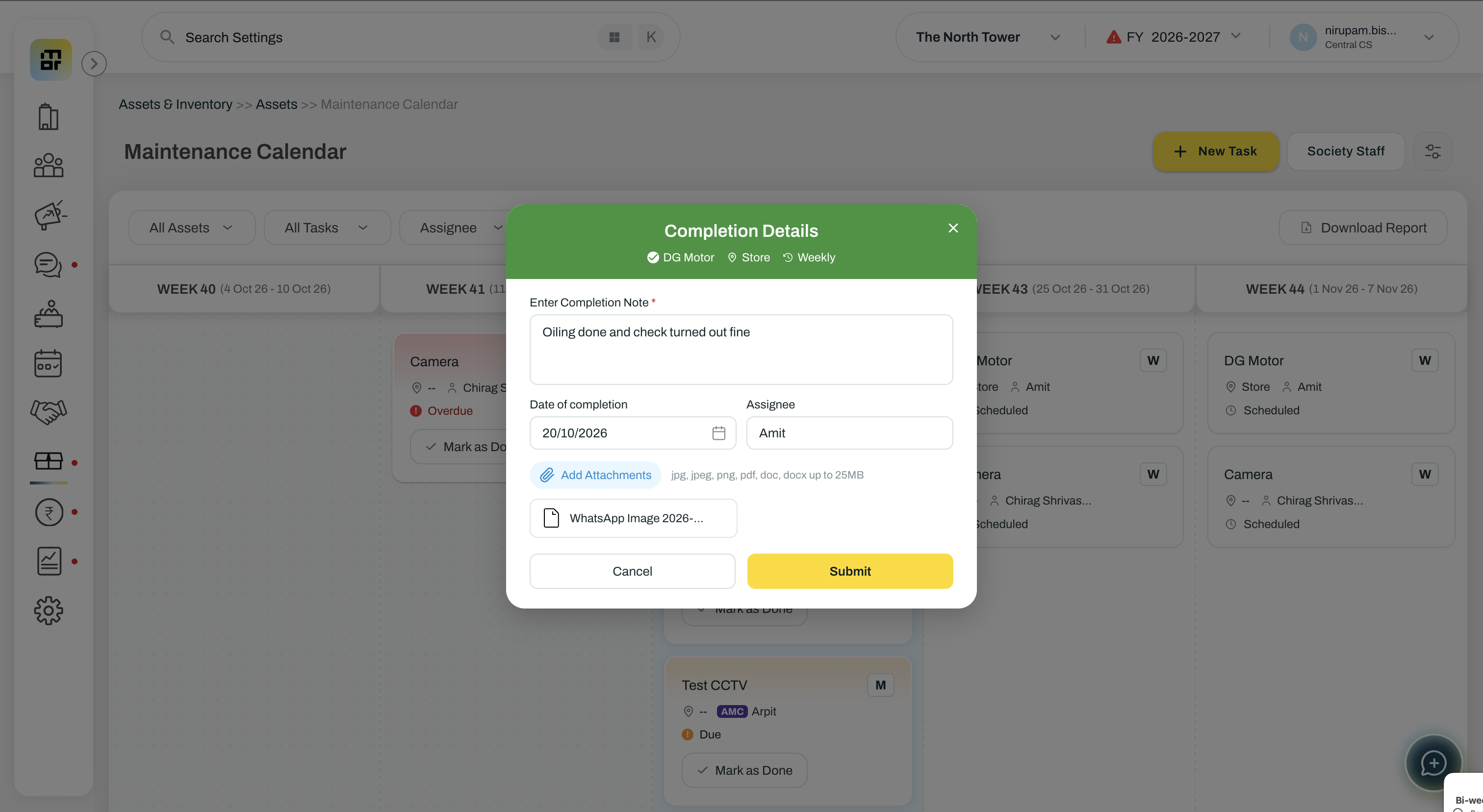
Click on the "Mark as Done" button on the task card or on the task detail page which you want to mark as complete. Fill the completion details, with a note and date of completion. You can also attach any photos as a proof of completion. Click on Submit when all the relevant details are filled.
Points to note:
You can upload up to five files in JPG, JPEG, PNG, or PDF format, with a maximum size of 5 MB per file.
The completion date is automatically set to the current system date. You can't backdate the completion date
A task can only be marked complete once its scheduled week begins
Where can I view completed task details and attachments?
Open the Task Detail page to view the task details, completion date, and any attachments uploaded during completion.