
How to create multi-level approval setup for purchasing and vendor expense & payments?
Multi-level approval allows admins to review and approve documents at different levels, ensuring better control and structured decision-making.
Before you begin:
Ensure the following are already set up:
Departments
Guide: https://adminfaq.mygate.com/articles/129816-how-to-add-departmentApproval Groups
Guide: https://adminfaq.mygate.com/articles/129517-how-to-create-different-kind-of-user-groups-for-the-society
Steps to set-up multi-level approval:
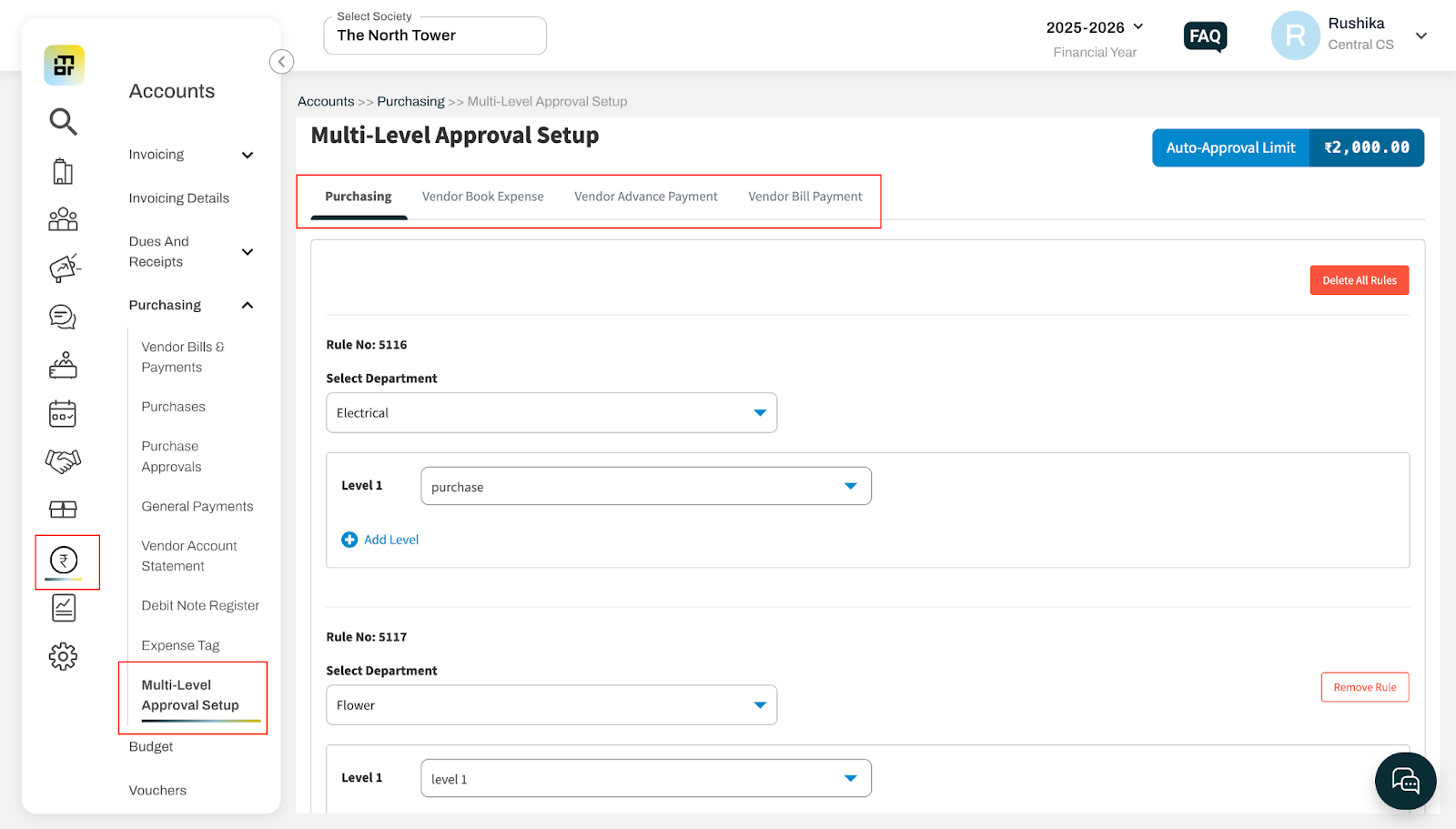
Go to Accounts → Purchasing → Multi-Level Approval Setup.
Select the module for which you want to configure approvals: Purchasing, Vendor Book Expense, Vendor Advance Payment, Vendor Bill Payment
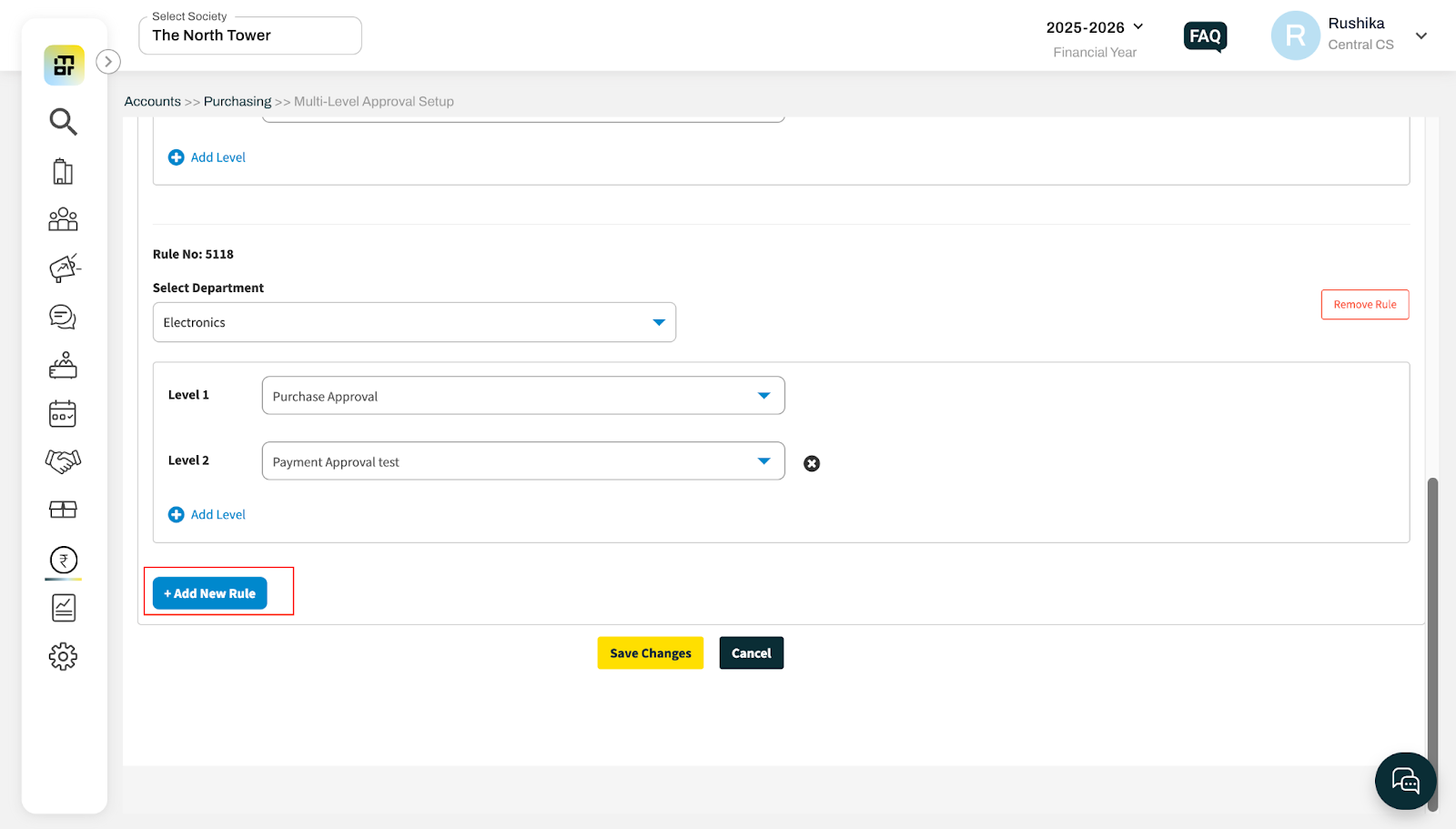
Click on “Add New Rule.”
Select the Department for which the approval flow needs to be configured.
Add the Approval Groups for each level (Level 1, Level 2, etc.).
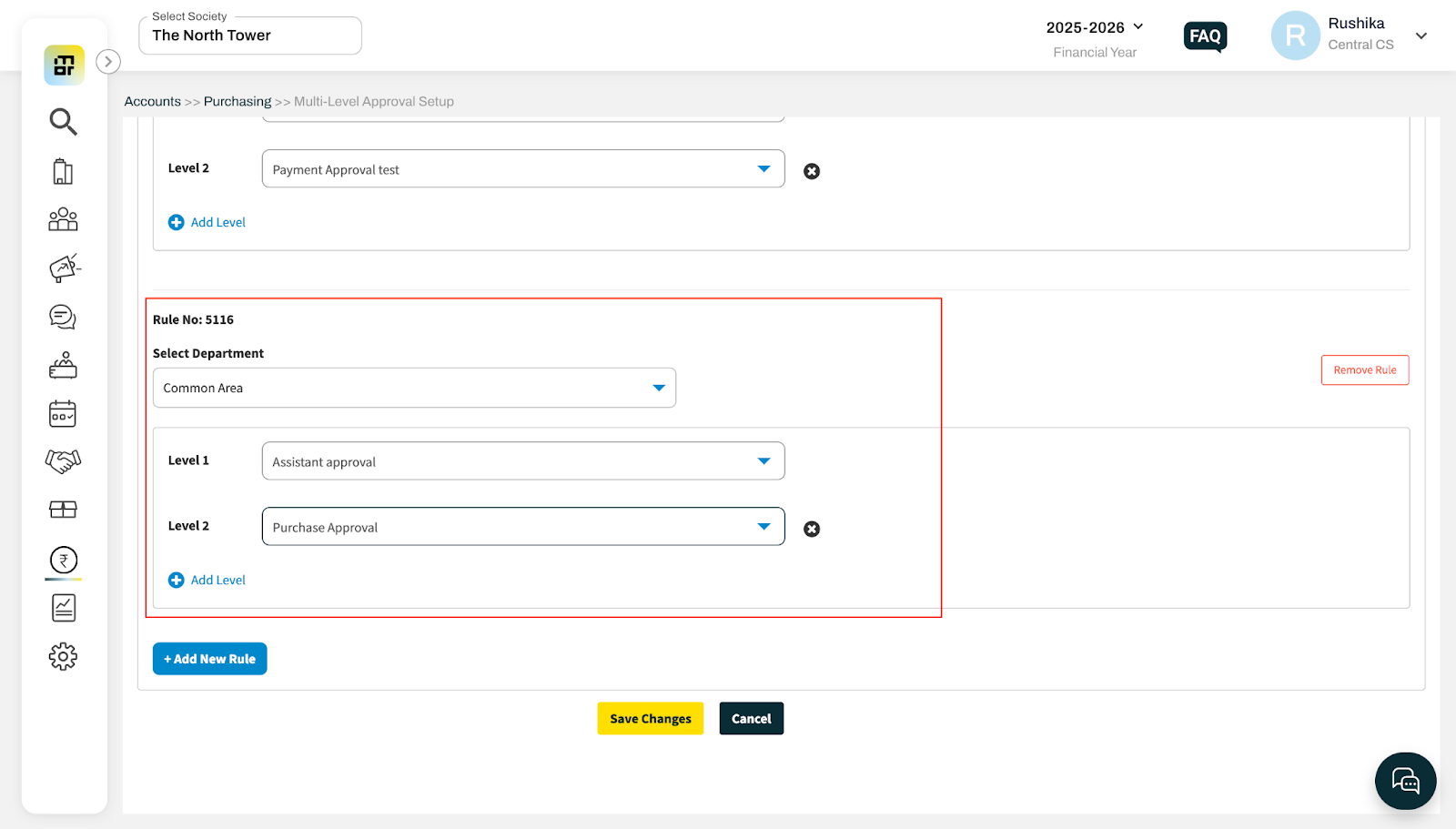
Click on “Save Changes.”
Once configured, documents will follow the defined approval flow, and members of each approval group can approve based on their assigned level.